AI Edit for QGIS: The Complete Guide
Published
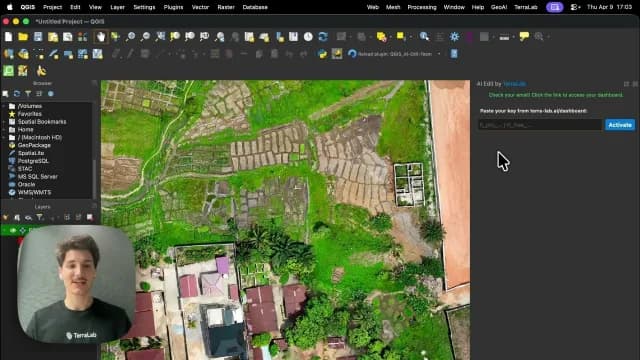 Watch the video tutorial
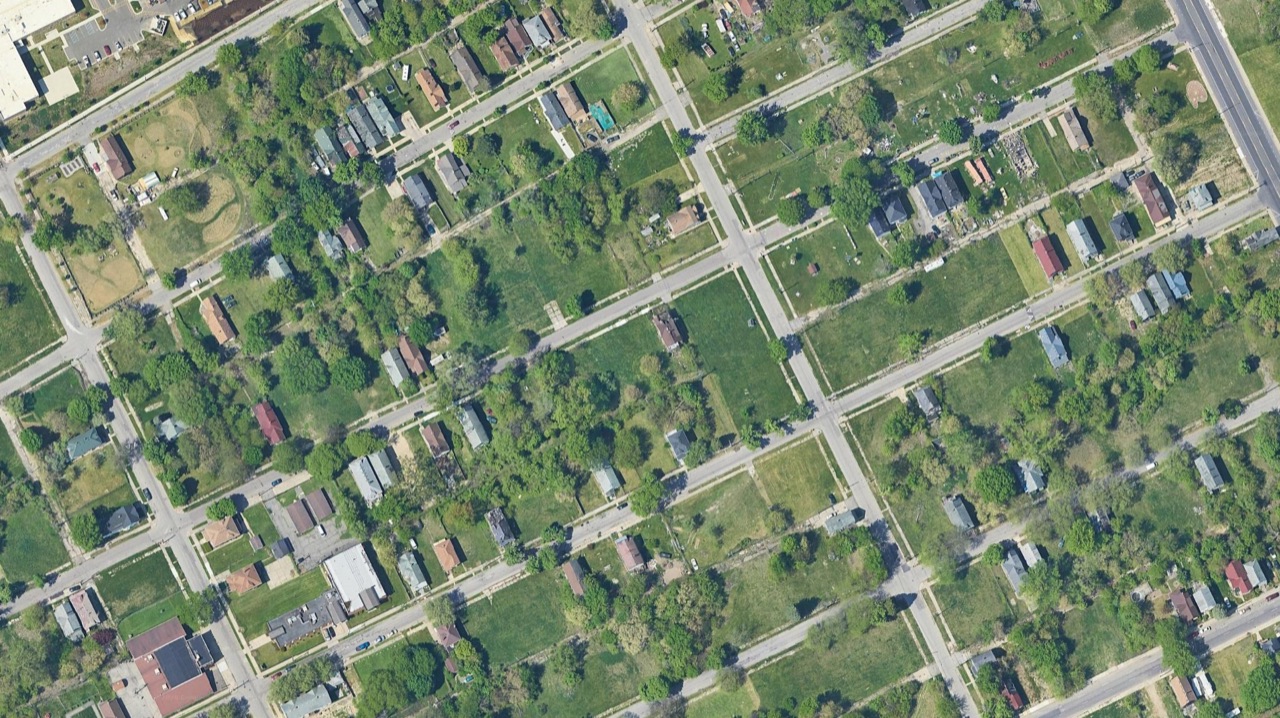
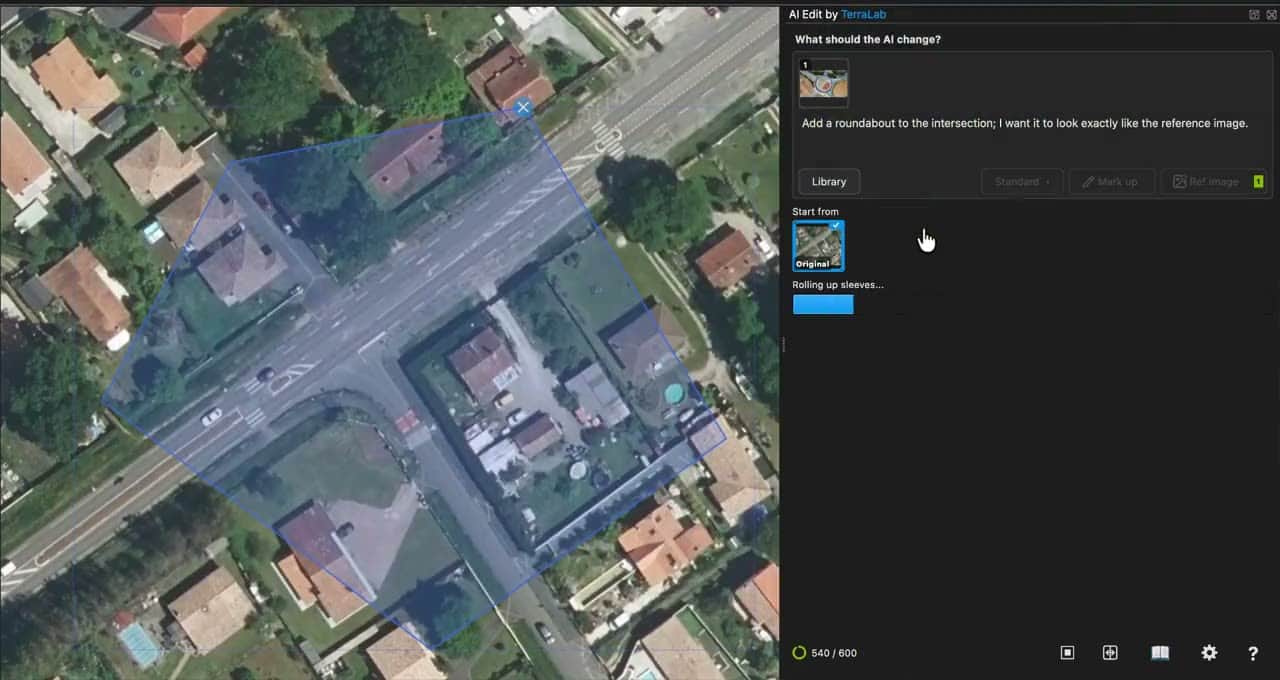
AI Edit redraws the aerial imagery already open in your QGIS canvas. You outline a zone, describe the change in a sentence, and the new image comes back on the map at the same coordinates, so it lines up with every other layer in the project. We build it, so this guide is about our own tool.
 canvas. You outline a zone, describe the change in a sentence, and the new image comes back on the map at the same coordinates, so it lines up with every other layer in the project. We build it, so this guide is about our own tool.
It covers your first edit, the prompt library, Mark up, Vectorize and reference images.
Examples
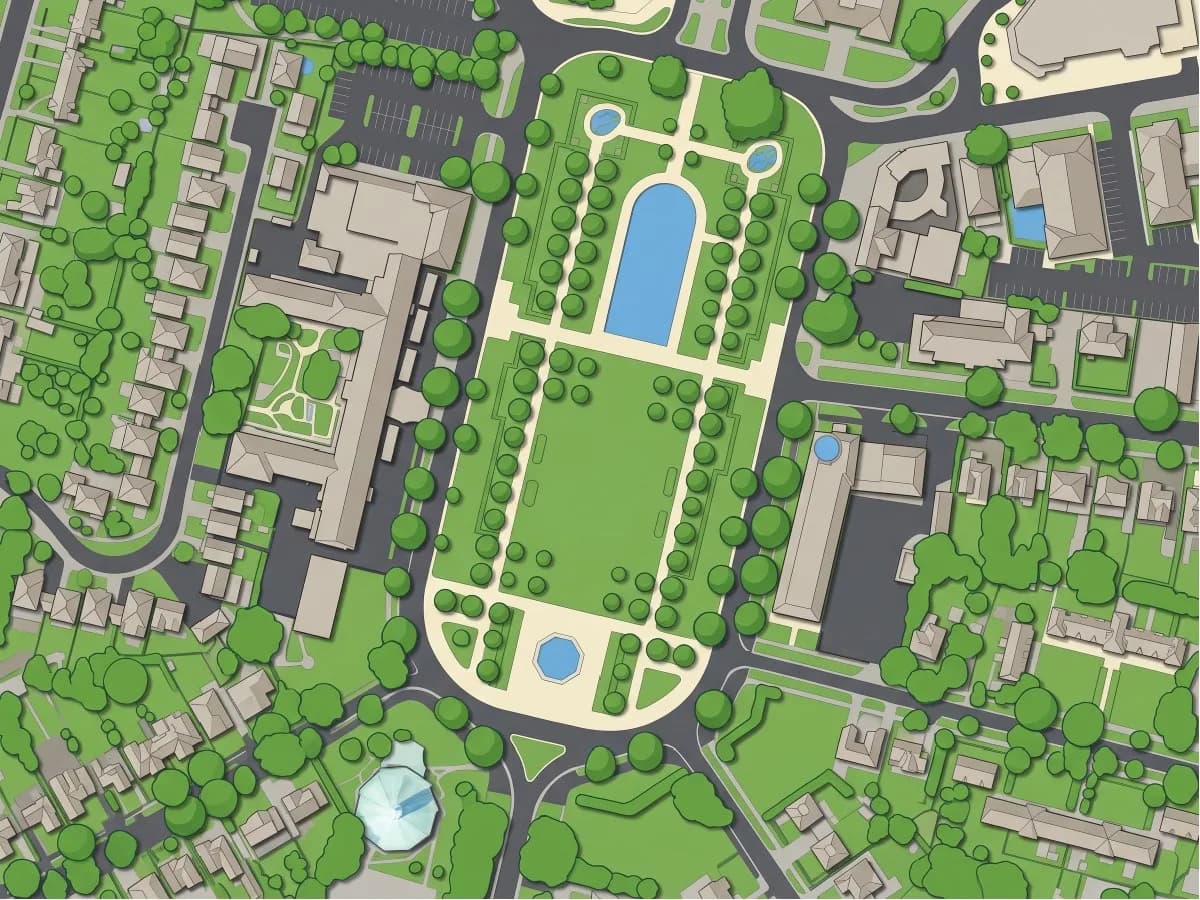
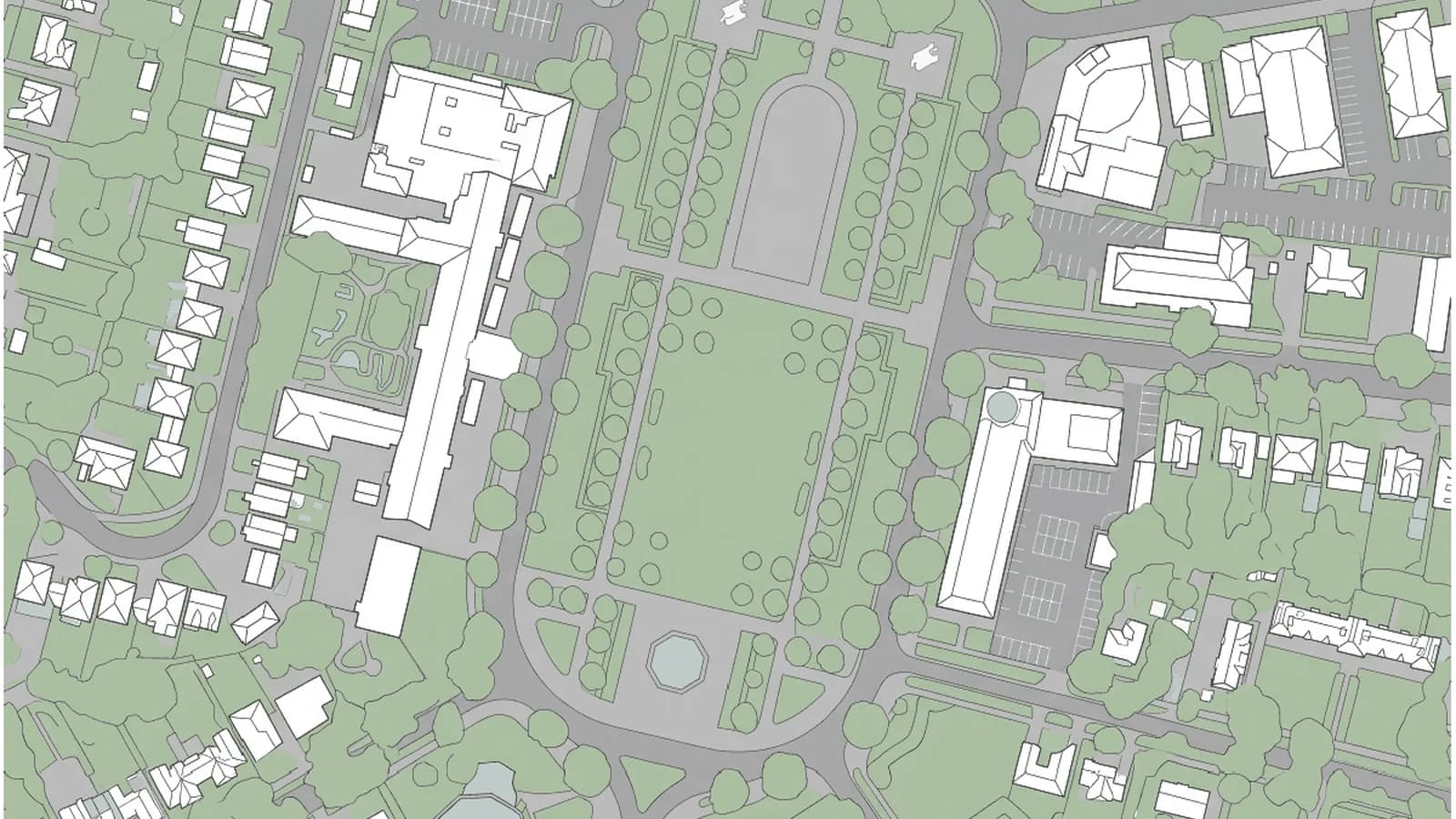
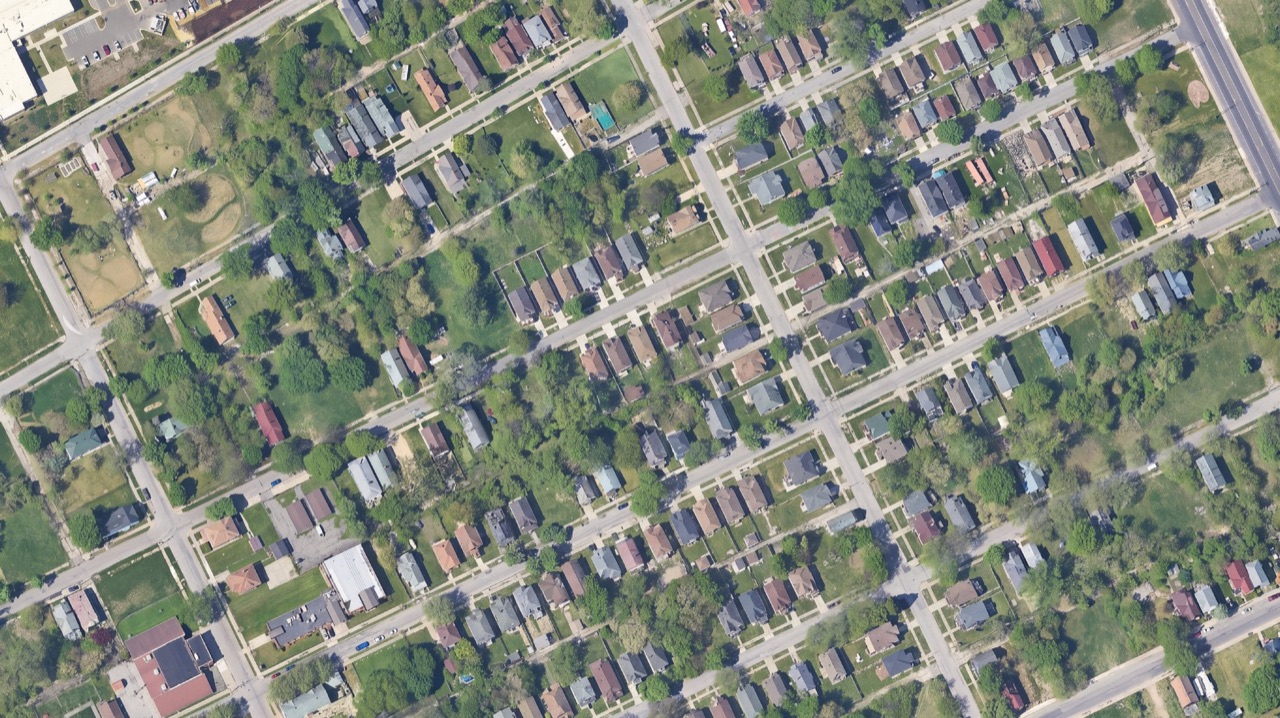
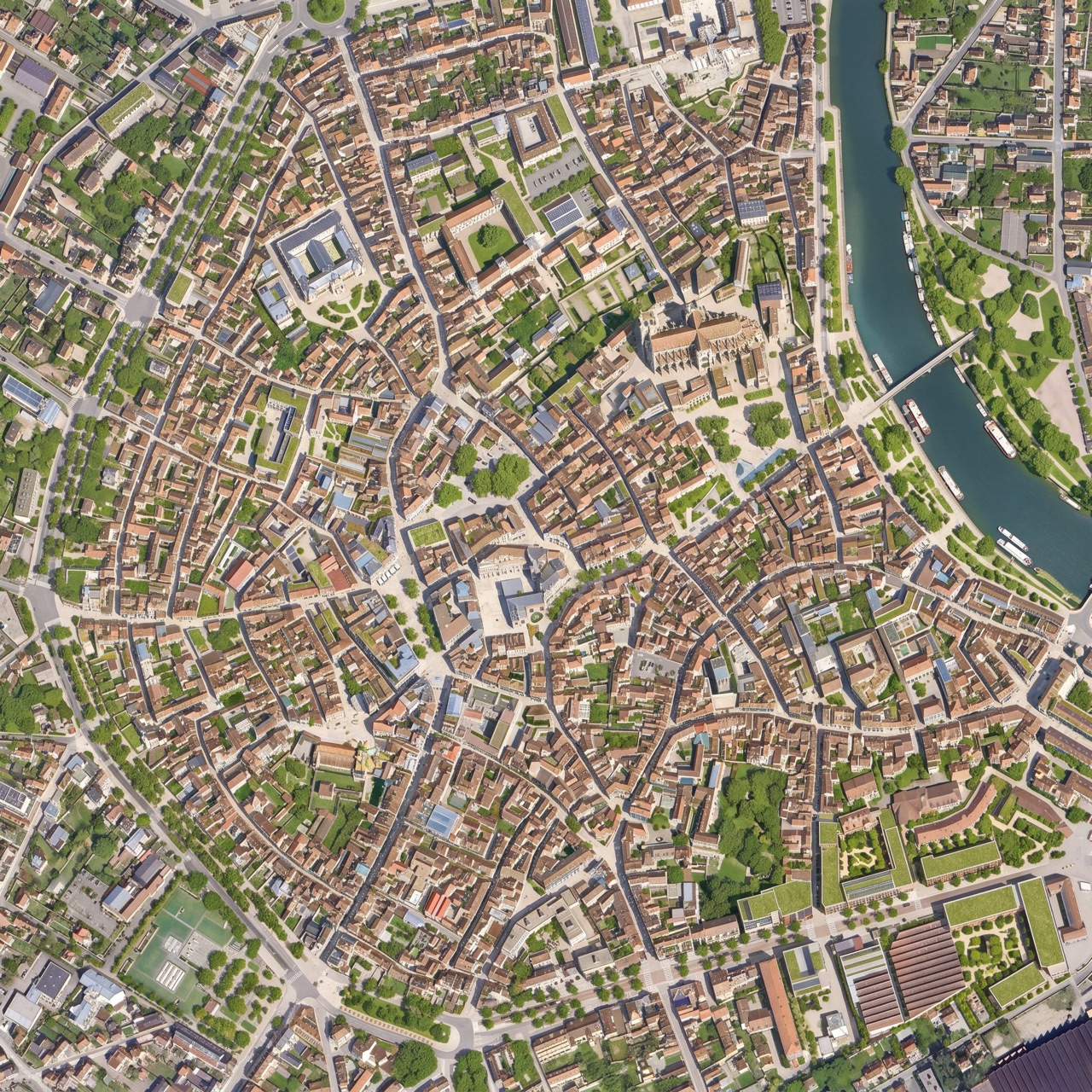
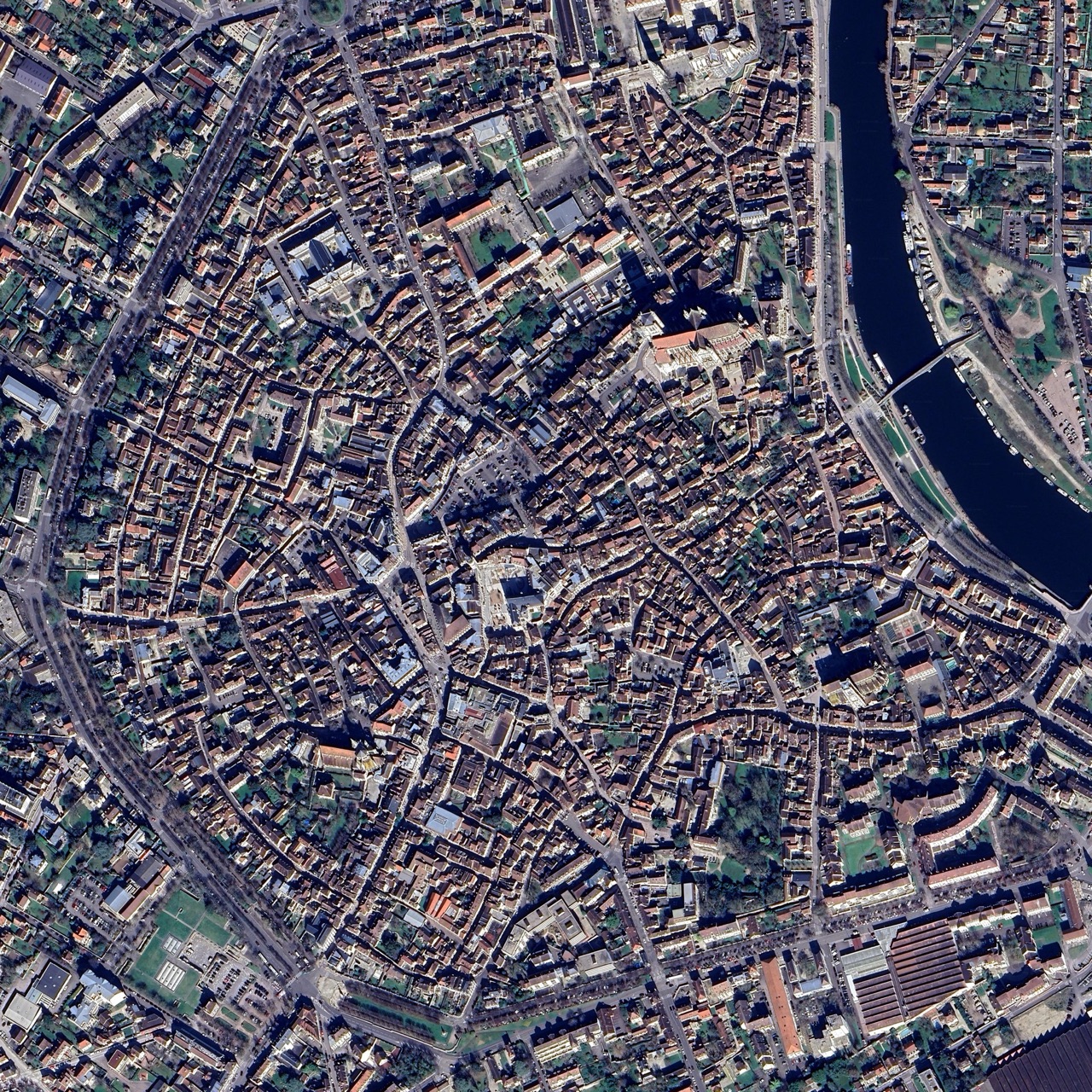
Drag the slider on any example: the original aerial image is on the left, the AI result on the right. Each caption is the kind of prompt that produced it.
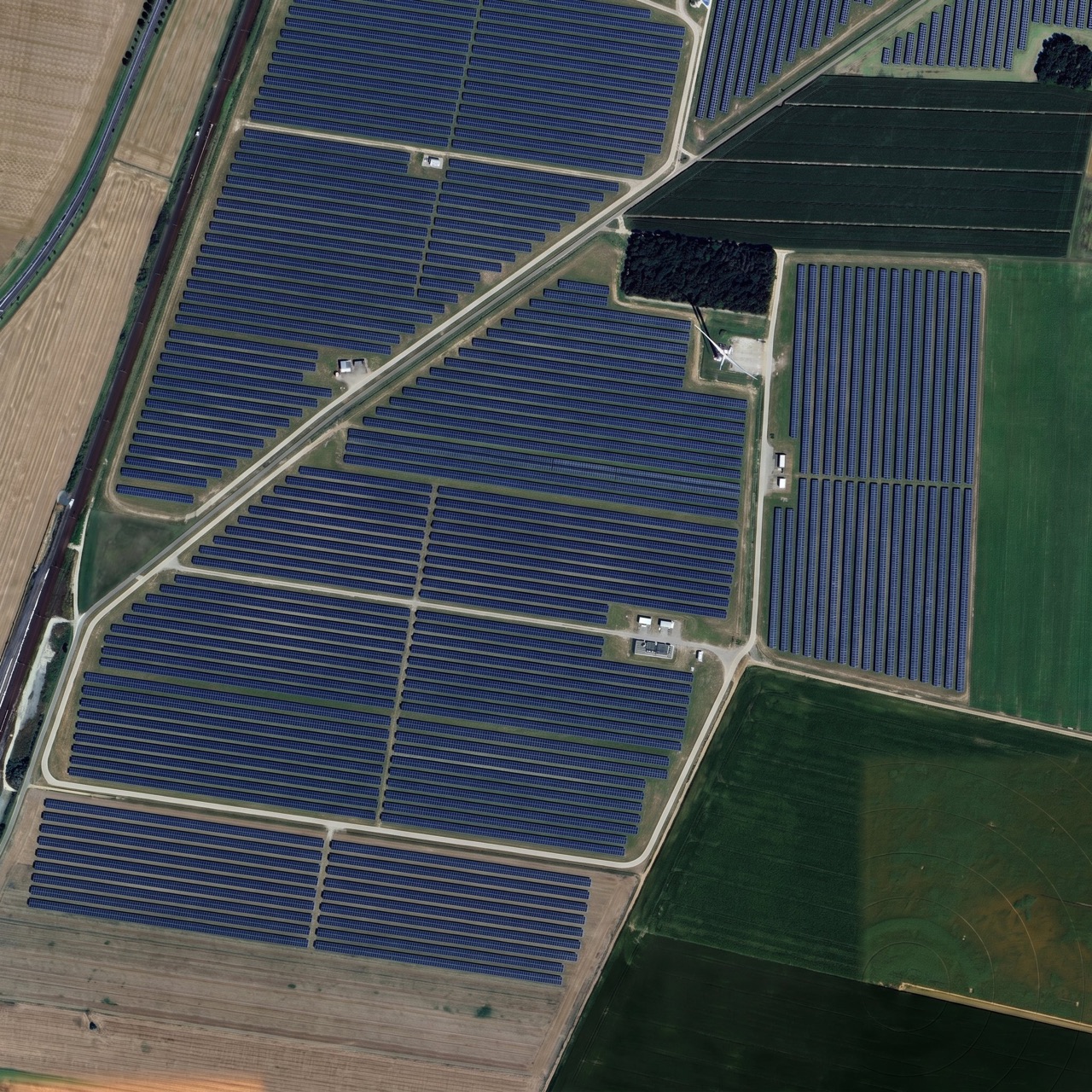
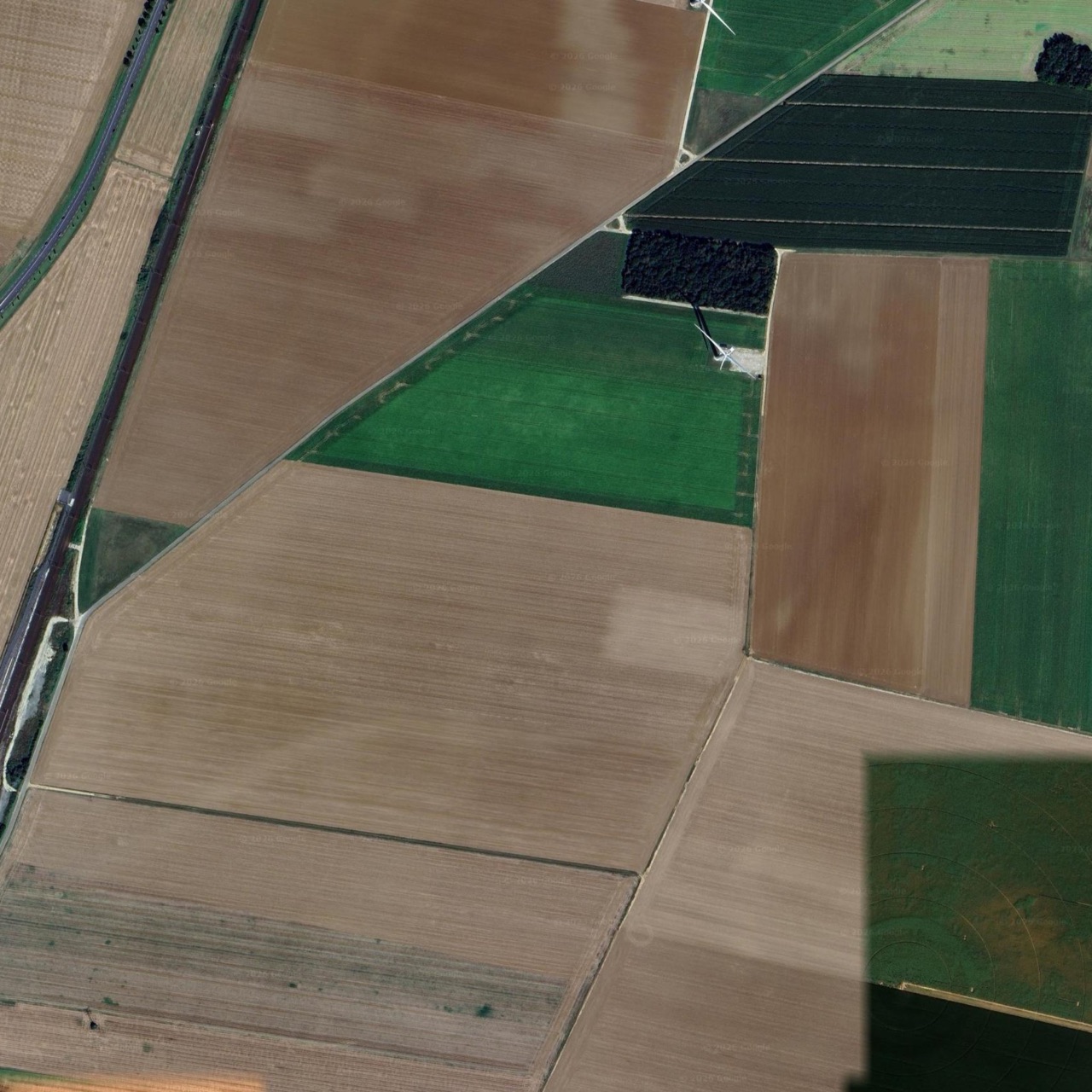
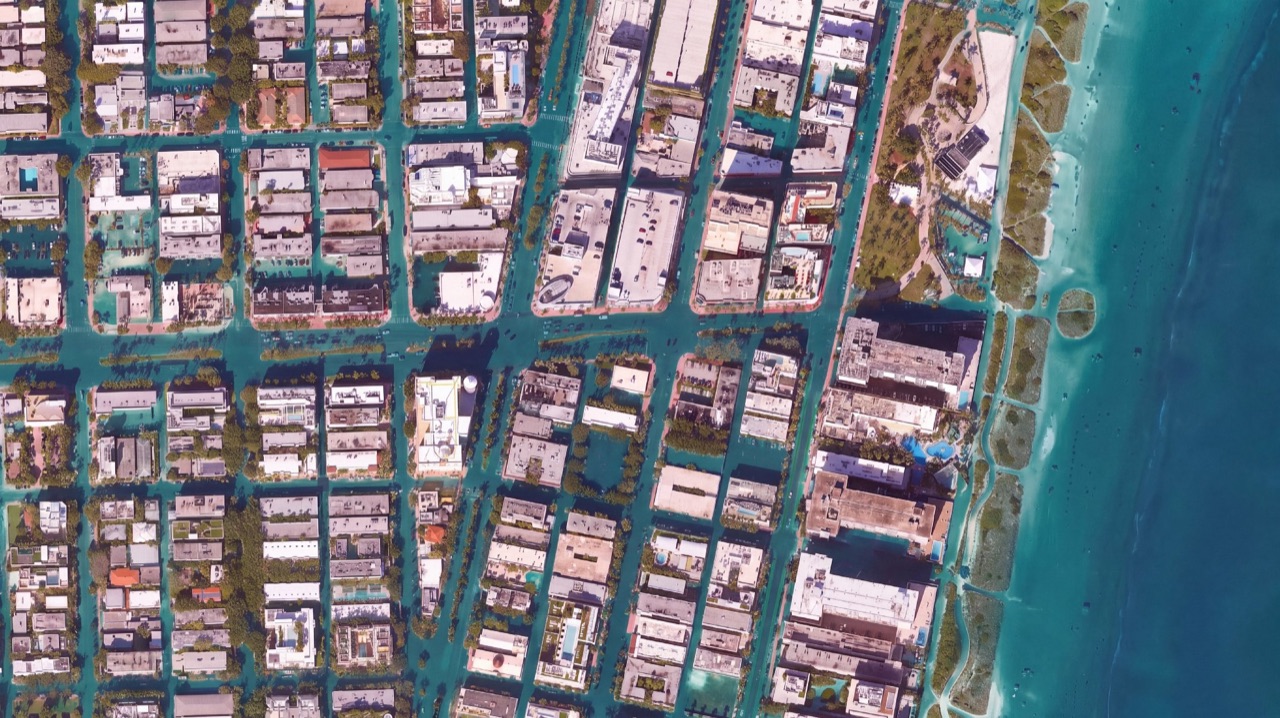
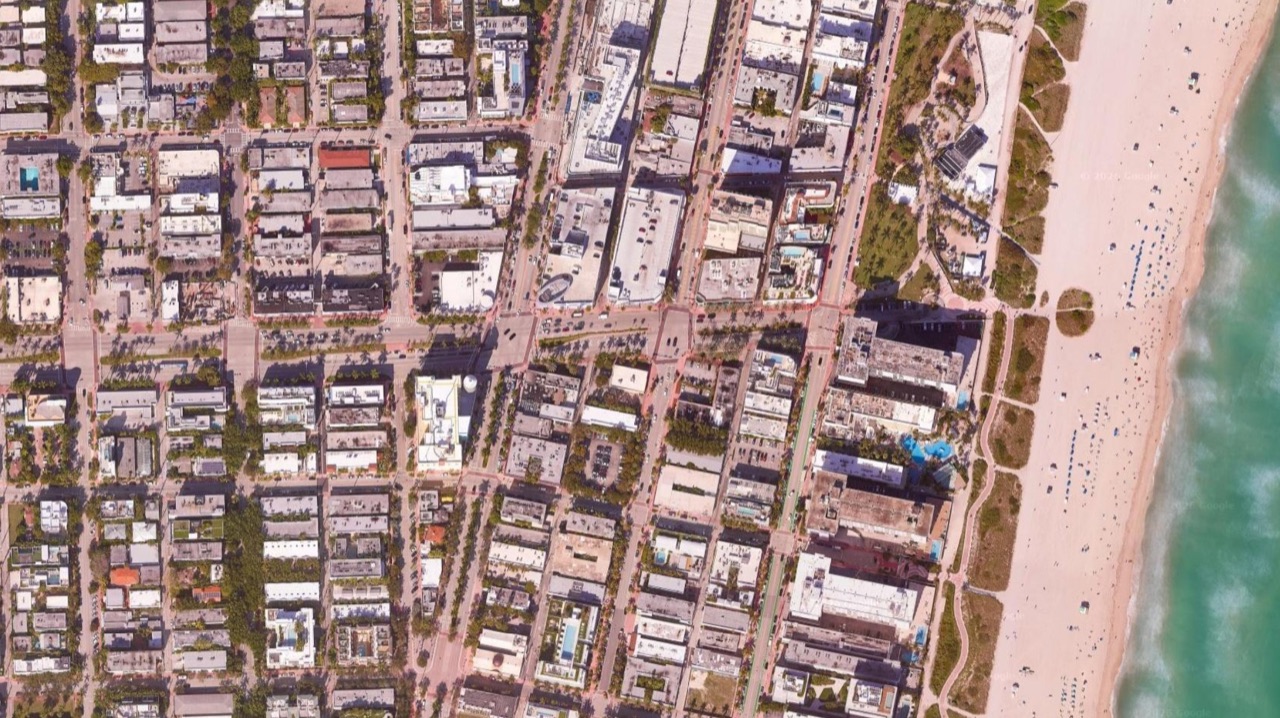
Install in QGIS
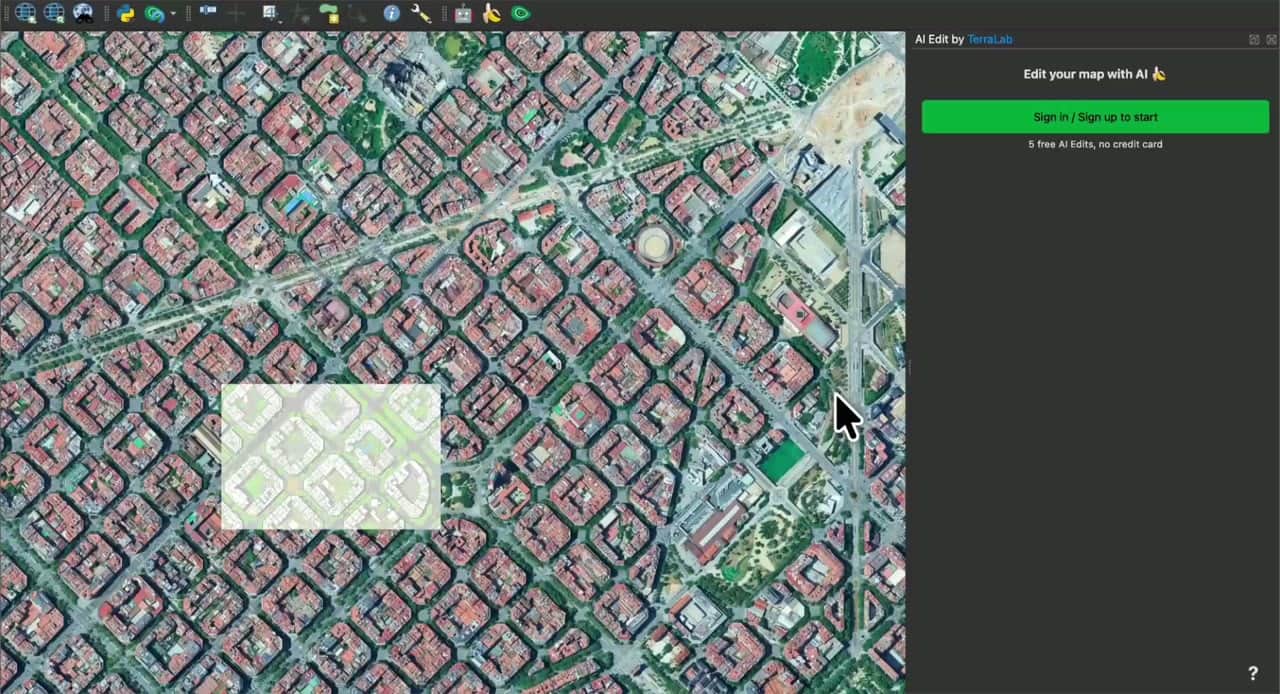
Install the plugin from the QGIS Plugin Repository: open Plugins -> Manage and Install Plugins, search for AI Edit, and click Install. It runs on QGIS 3 and 4, on Windows, macOS, and Linux, and is powered by the Nano Banana 2 model.
Then open the panel and click Sign in / Sign up. Your browser opens, you create an account (email, Google, or Microsoft), and the plugin connects itself, no credit card, with free edits to start.
Your first edit
Launch and draw your zone
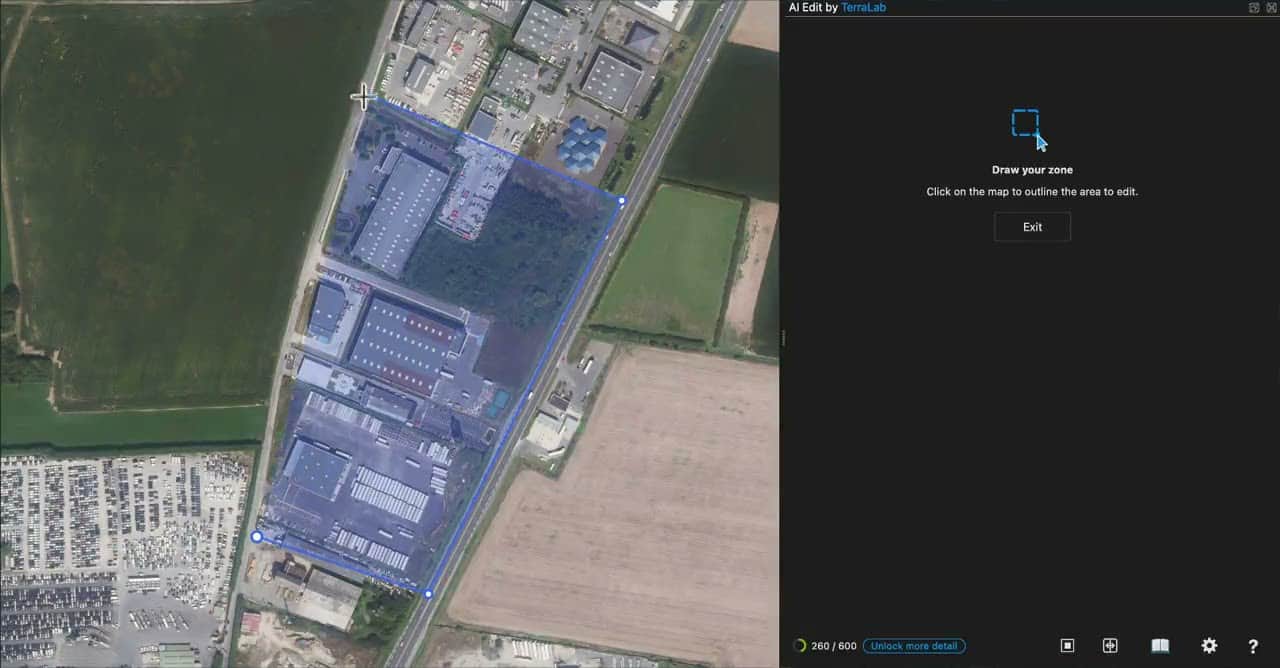
Click the green Launch AI Edit button, then draw your zone directly on the map, point by point, around the area you want to change. Close the polygon by clicking your first point again: the zone is set.
Describe the change
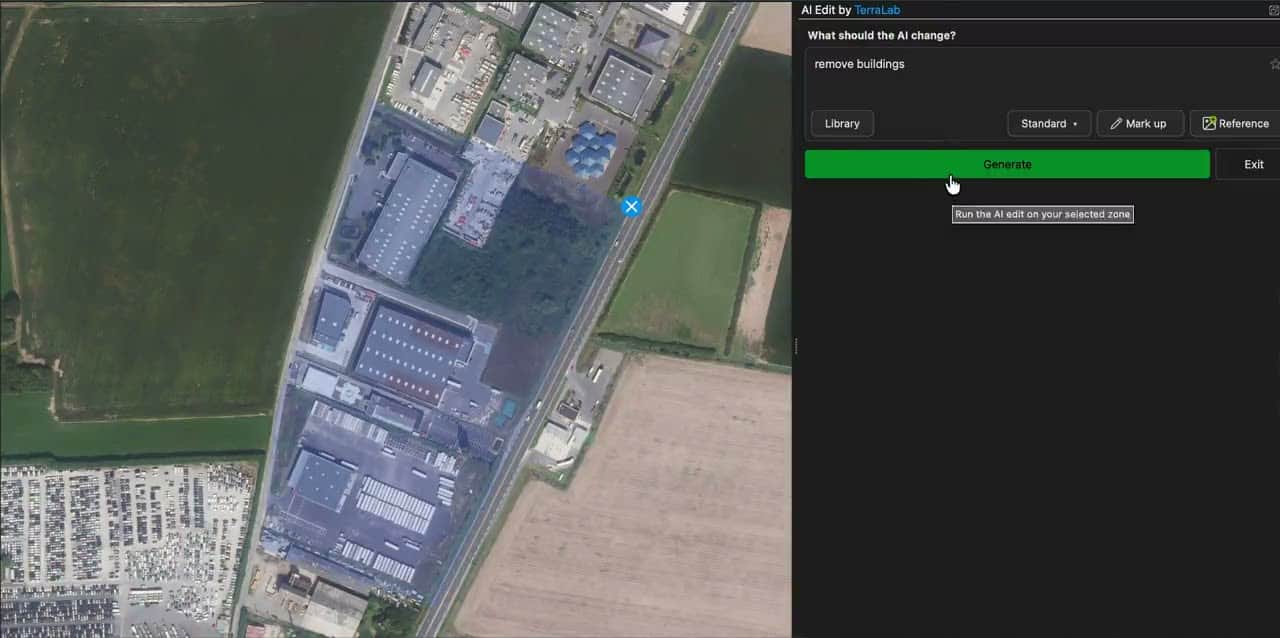
Type a prompt, or open the Library for a ready-made one.
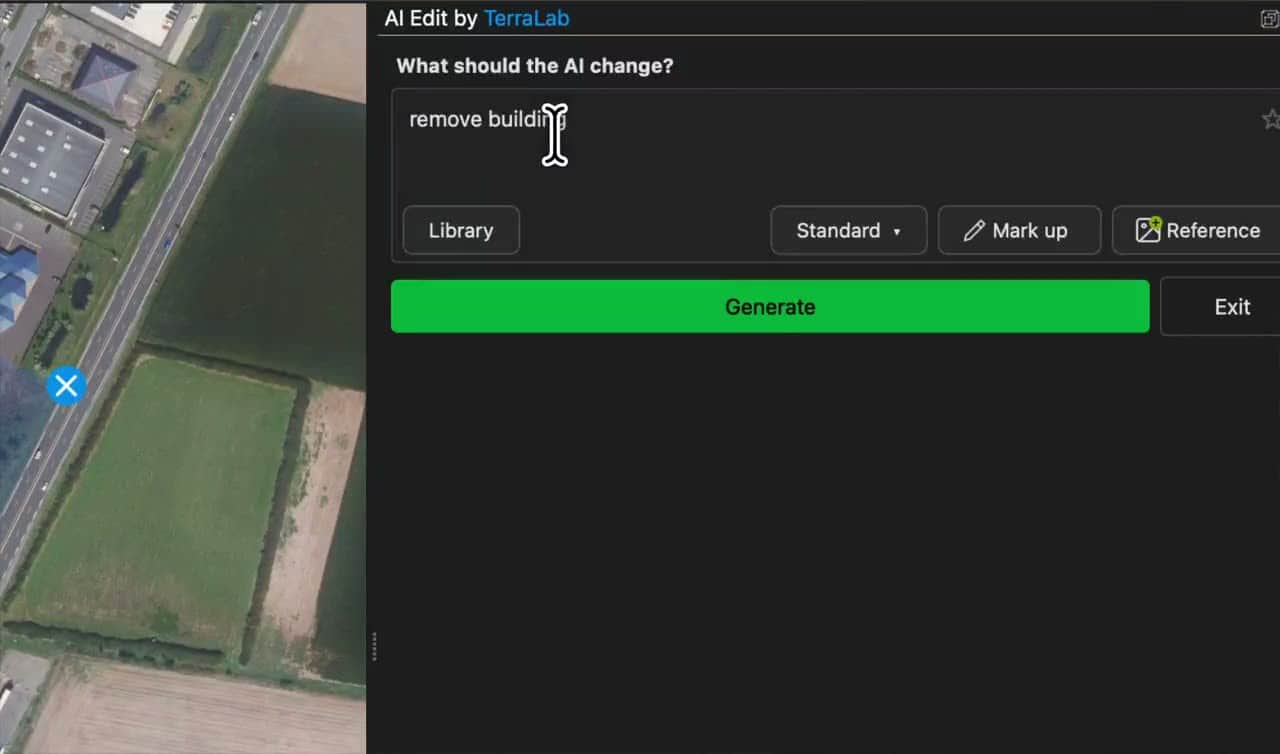
Pick the output detail
| Detail | Resolution | Plan |
|---|---|---|
| Standard | 1K | Free |
| Detailed | 2K | Pro |
| Maximum | 4K | Pro |
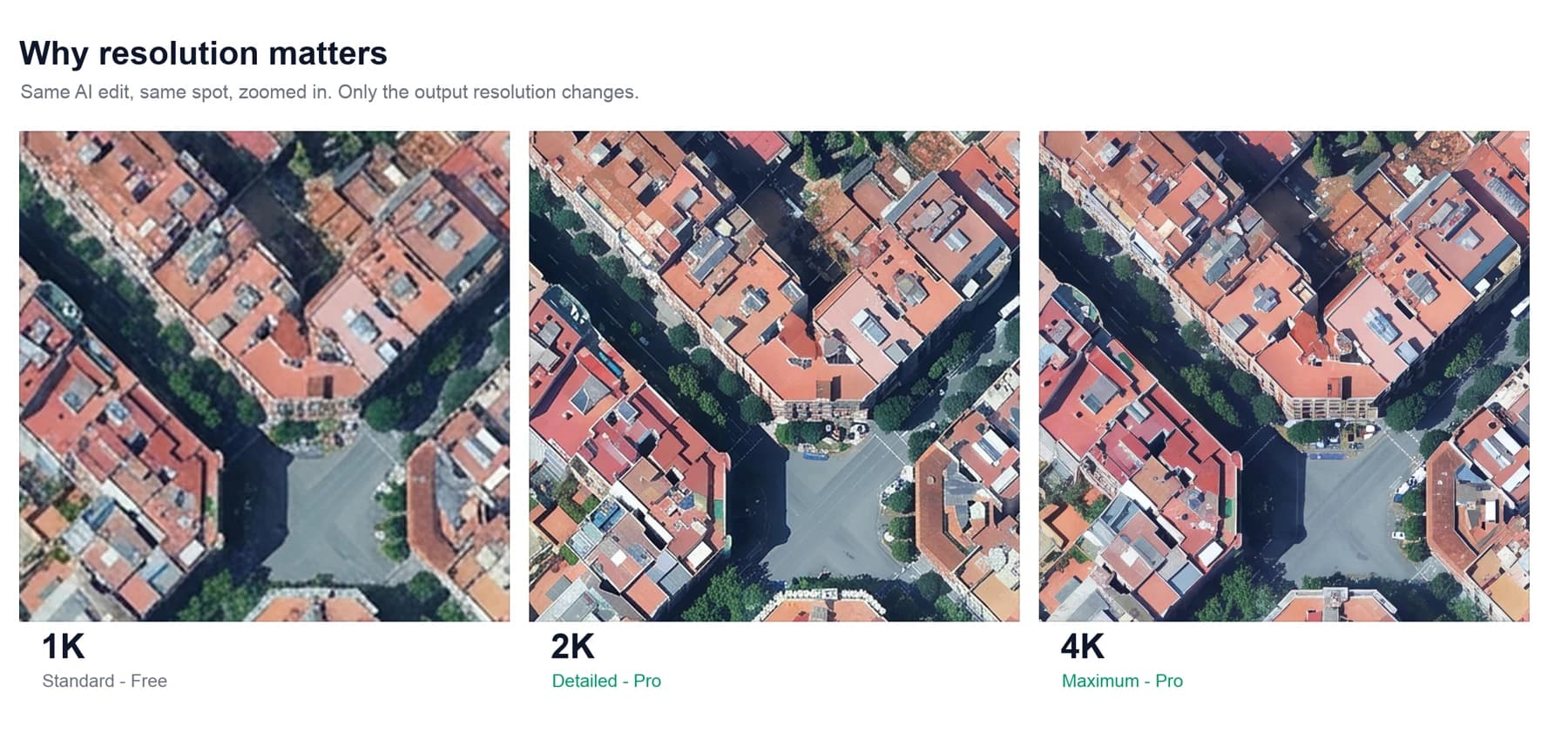
Standard (1K) is plenty for trying things out. Switch to Detailed or Maximum when the result matters: the model reads and renders more pixels, so fine details survive. The full picture is in Free vs Pro, further down.
Generate
Click Generate. A few seconds later the result is added as a new georeferenced raster, exactly over your zone.
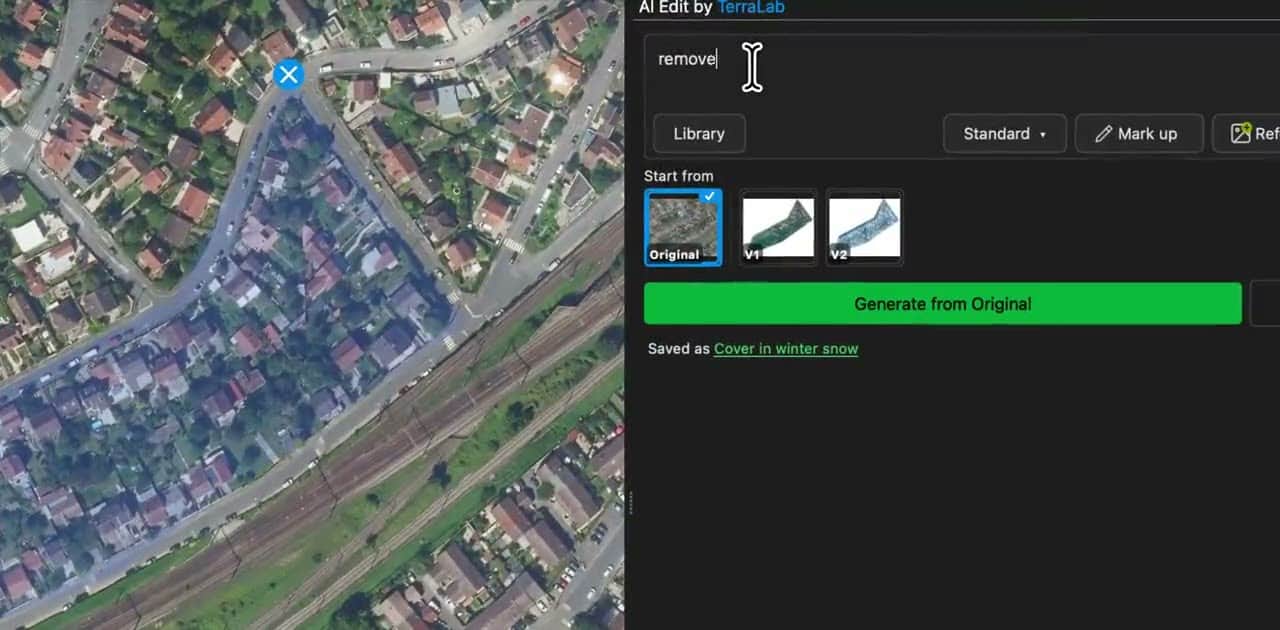
The panel keeps every version (Original, V1, V2, and so on). Pick one as the base, prompt again, and generate to refine.
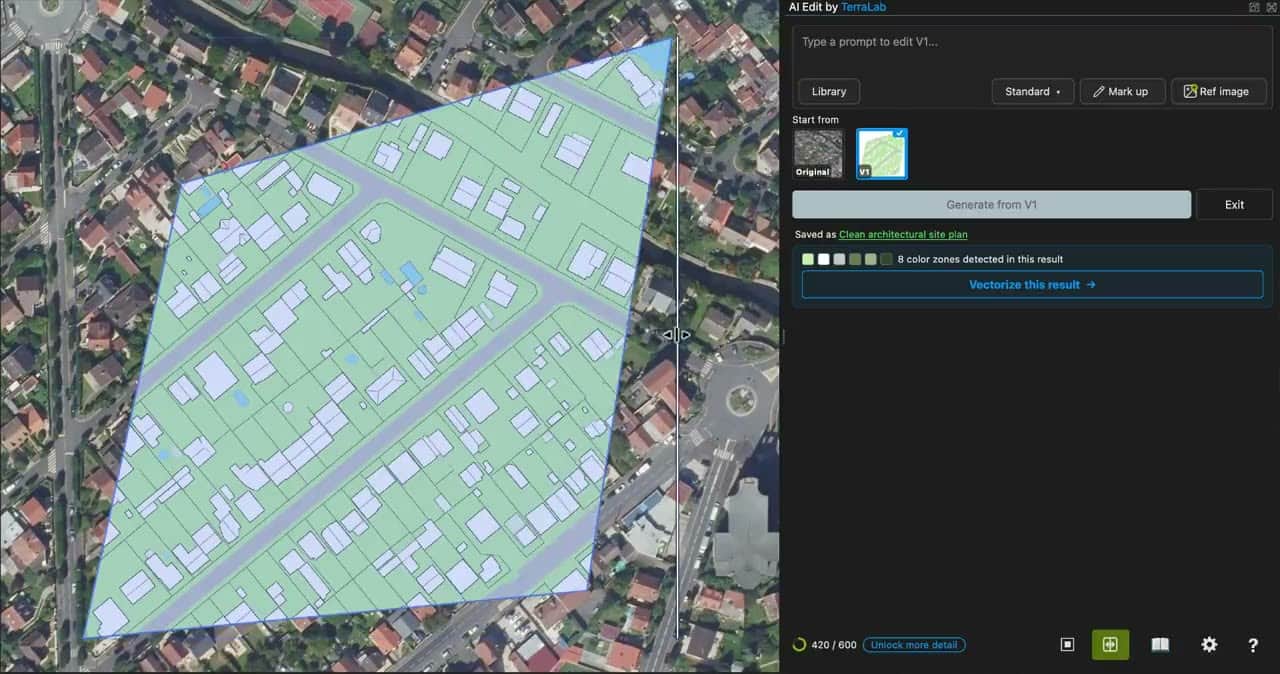
The Before / after button slides between input and output, right on the map.
The prompt library
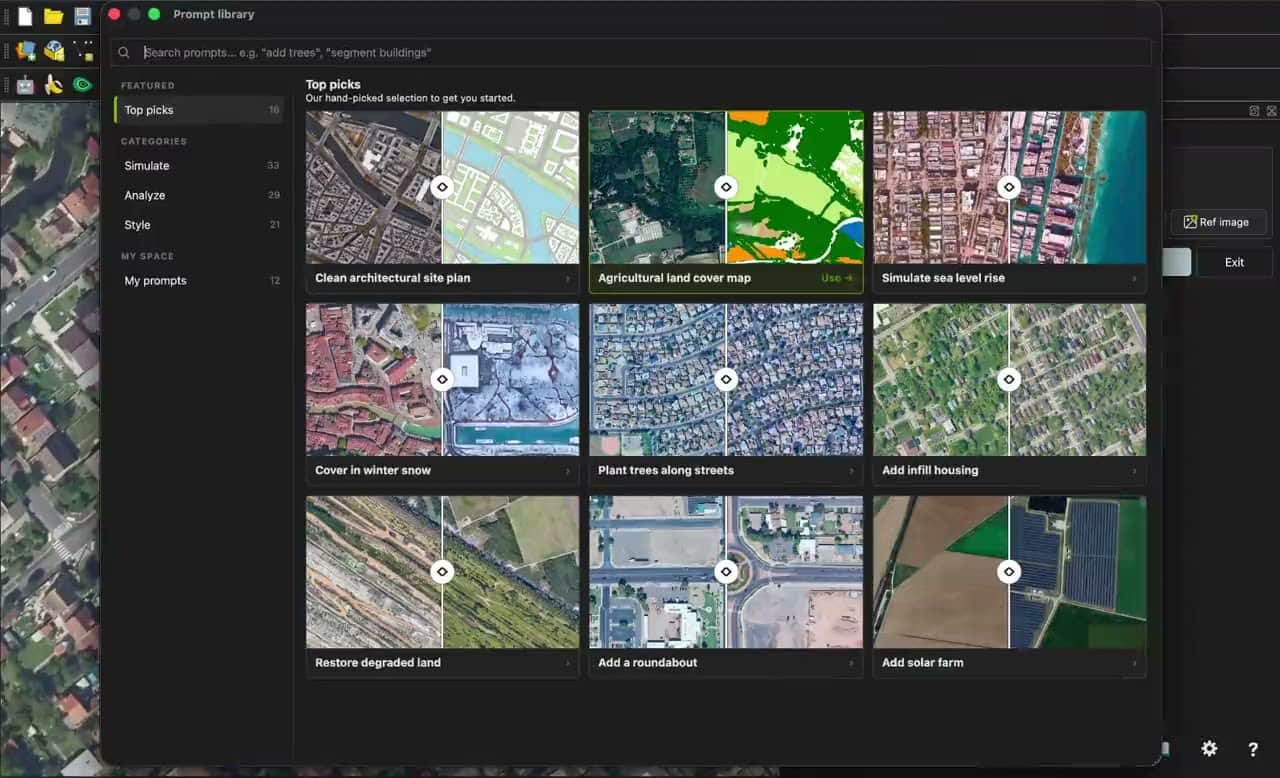
Click Library to browse ready-made templates, each with a before/after preview and an editable prompt. They are grouped by theme: Cartography, Urban, Segment, Land cover, Cleanup, Forestry, Agriculture, Climate, Energy, and more.
Mark up
Mark up lets you draw on your zone to tell the AI where to act. Your marks guide the edit and are removed from the result. Use it for a change in one specific place, not across the whole image.
Open Mark up and pick a tool
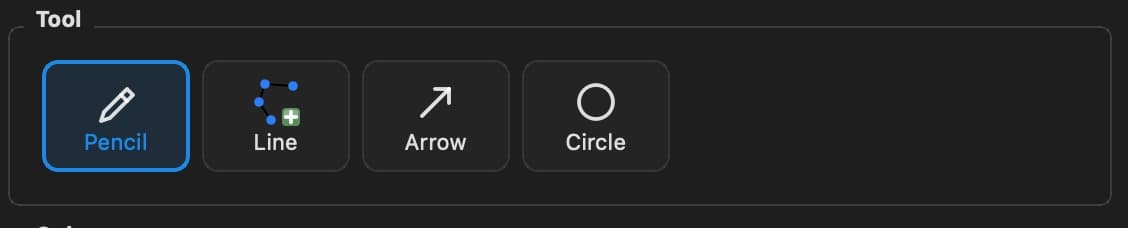
With a zone drawn, click the Mark up button, then choose a tool (pencil, line, arrow, circle) and a color.
Draw on the map
Sketch your mark right on the imagery: an outline, an arrow, a circle.
Prompt and generate
Name that color in the prompt, then generate.
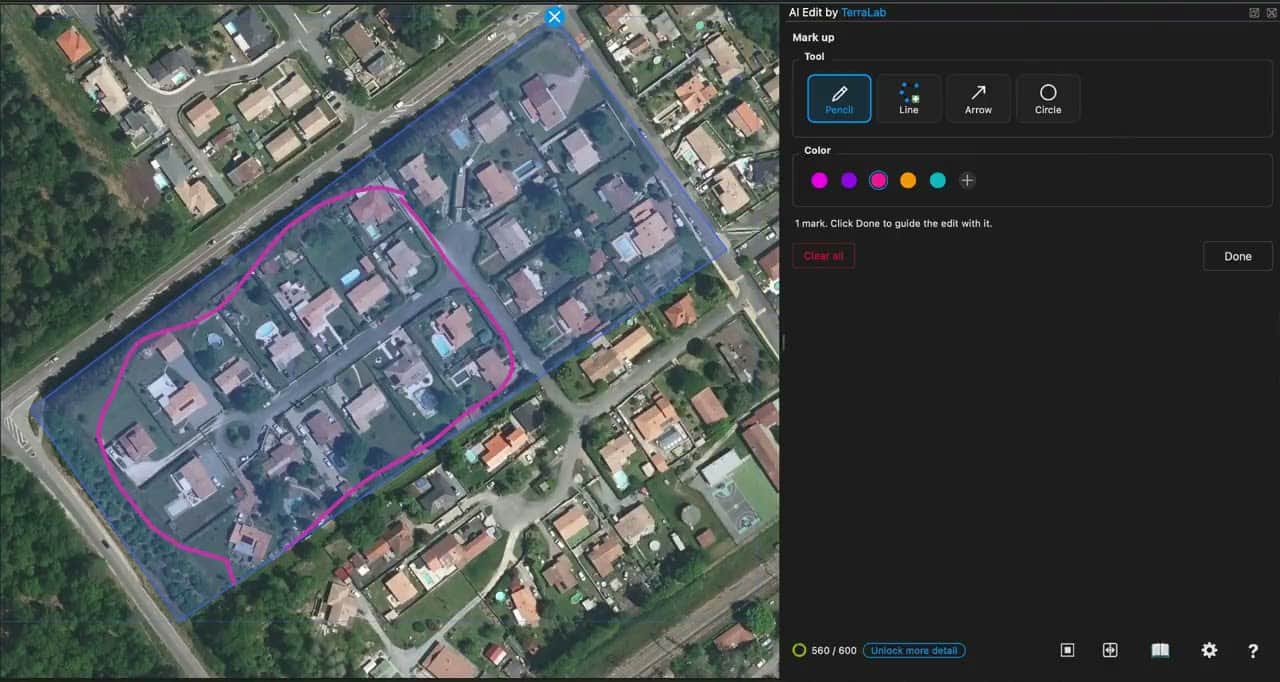
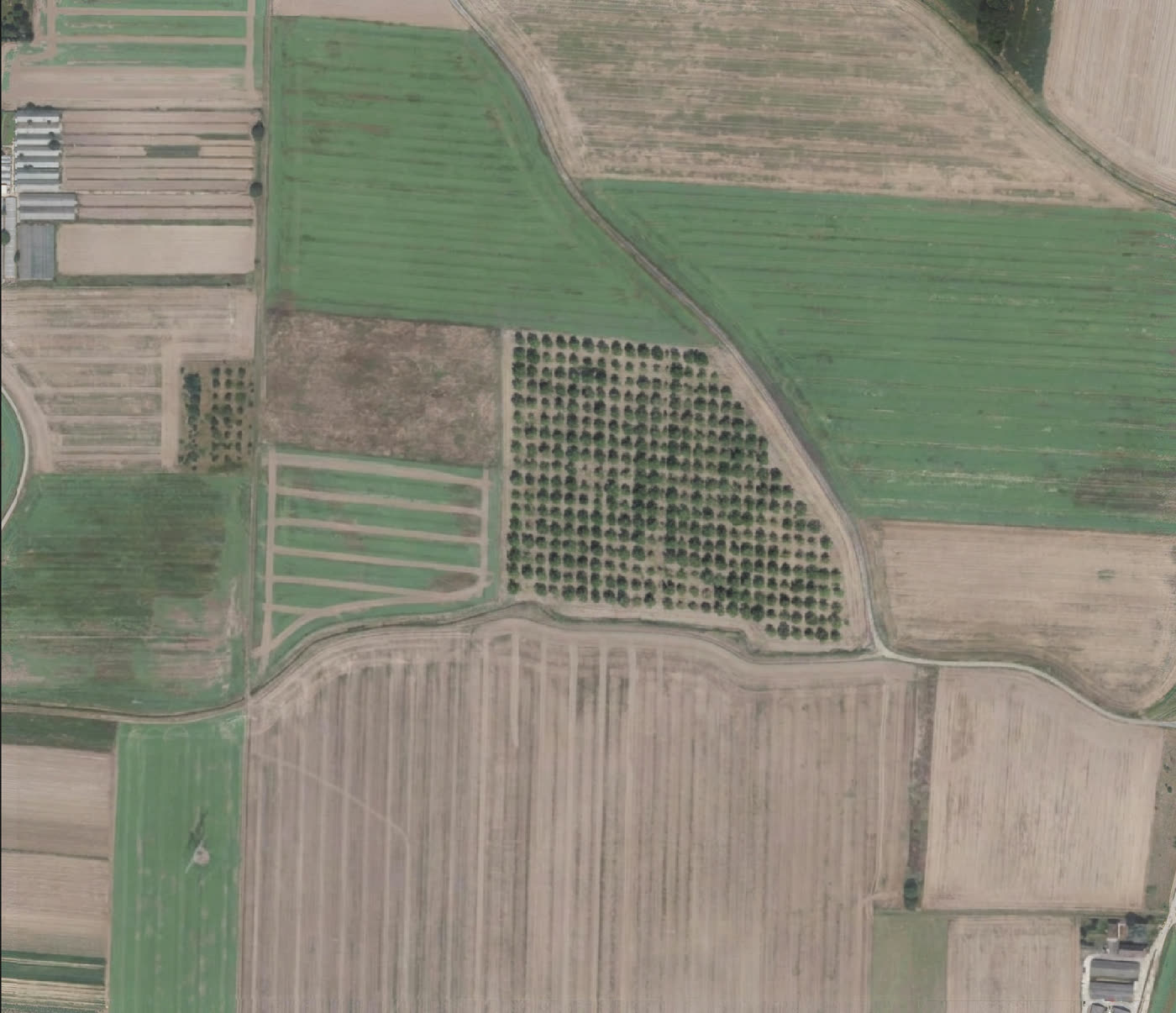
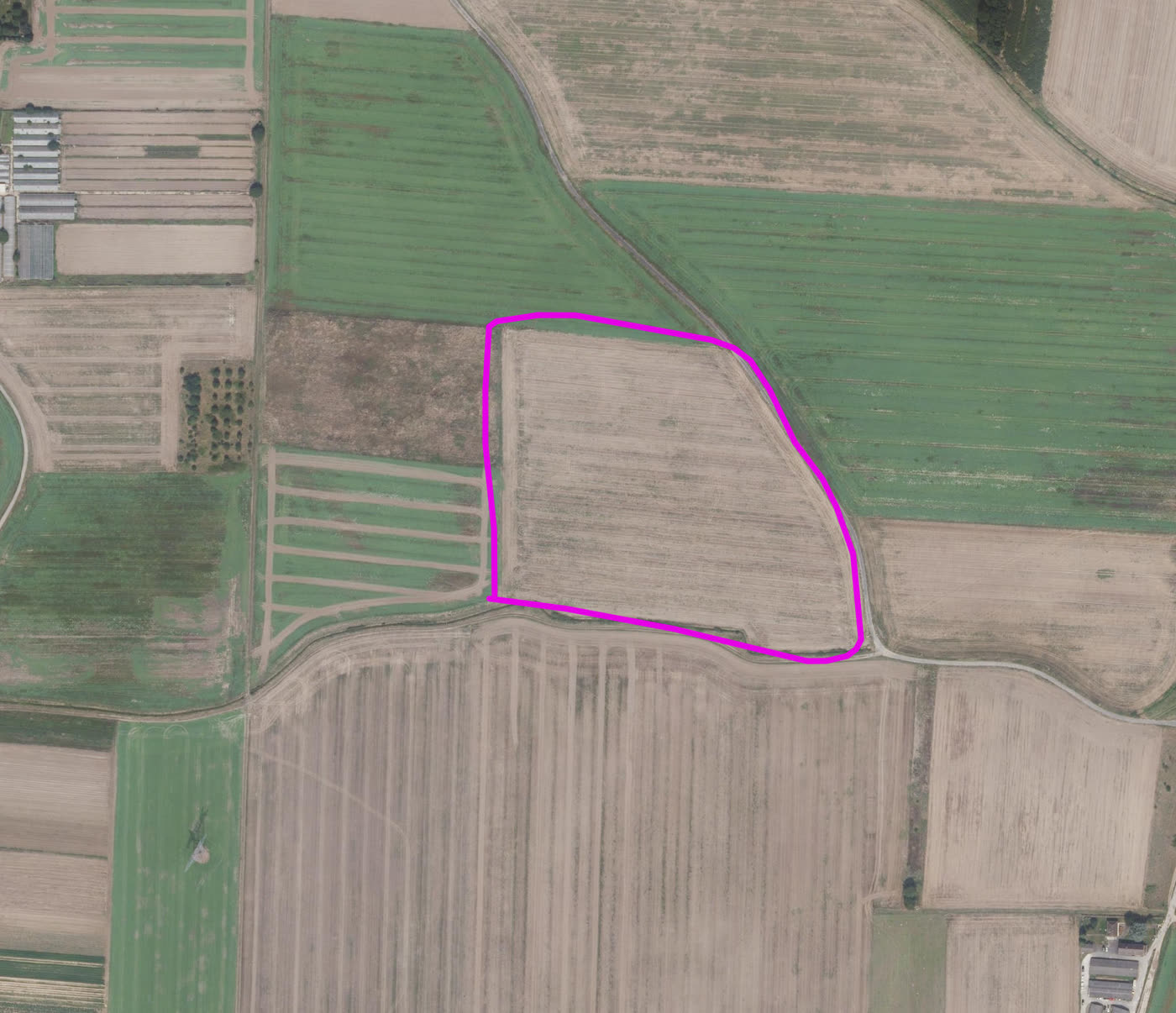
The prompt that produced the result below:
Plant trees inside the pink outline. Keep everything outside untouched.
Vectorize
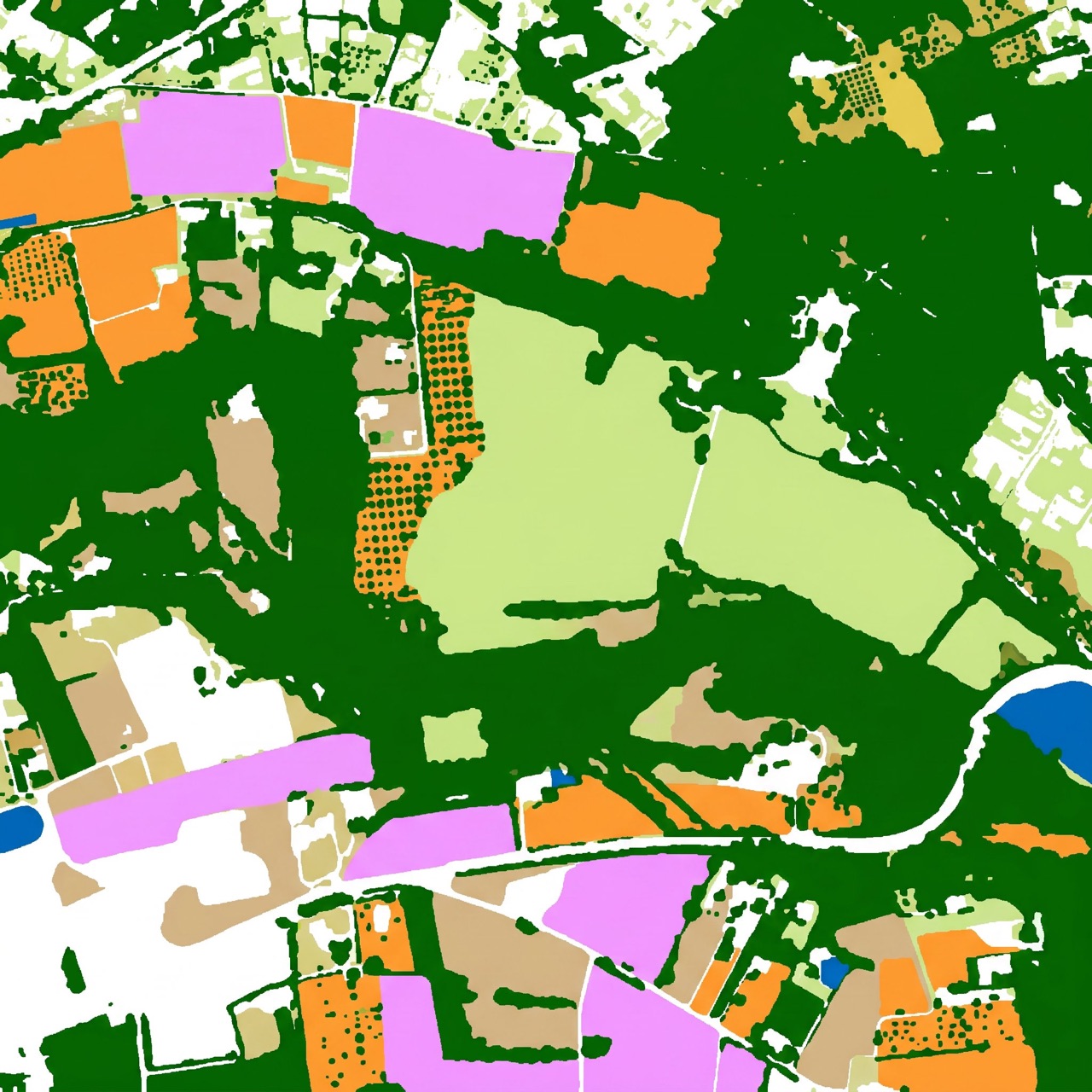
The plugin has two main use cases. The first is simulation: changing a few details of an existing image while keeping its colors and level of detail. The second is classification: detecting the features in the image, by segmenting or classifying it.
Vectorize exists for that second case. It turns the flat-colored zones of an AI result (buildings, land-cover classes, parcels) into real vector polygons you can select, measure, style, and export. Detection and classification work best at local scale. To cover large areas, switch to our AI Segmentation plugin.
Run a segmentation, then click Vectorize
Start by generating a segmentation: just ask for it in the prompt ("segment all buildings"), or pick a template from the Segment category in the Library. On the result (buildings in red), click Vectorize this result.

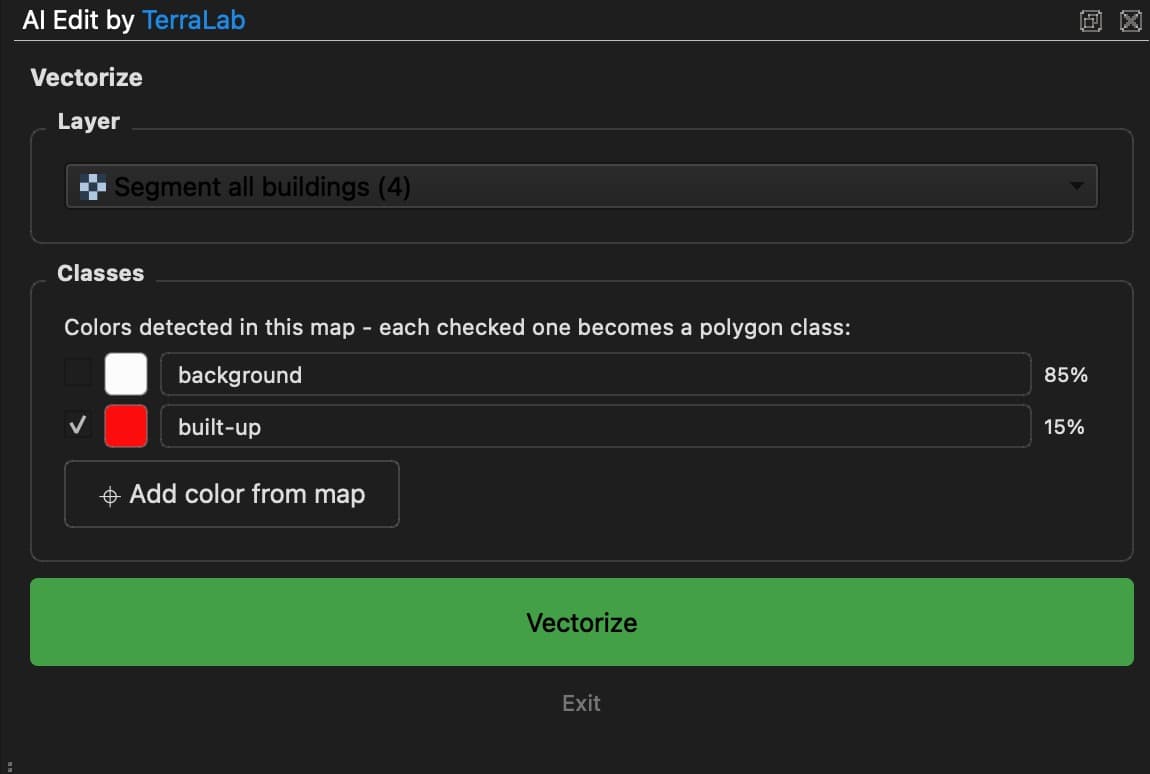
Confirm the color
The panel pre-fills the color to extract, or use Pick on map to sample a different one.
Refine live
Adjust tolerance, despeckle, simplify outlines, and round corners: every change re-runs instantly on the same layer.
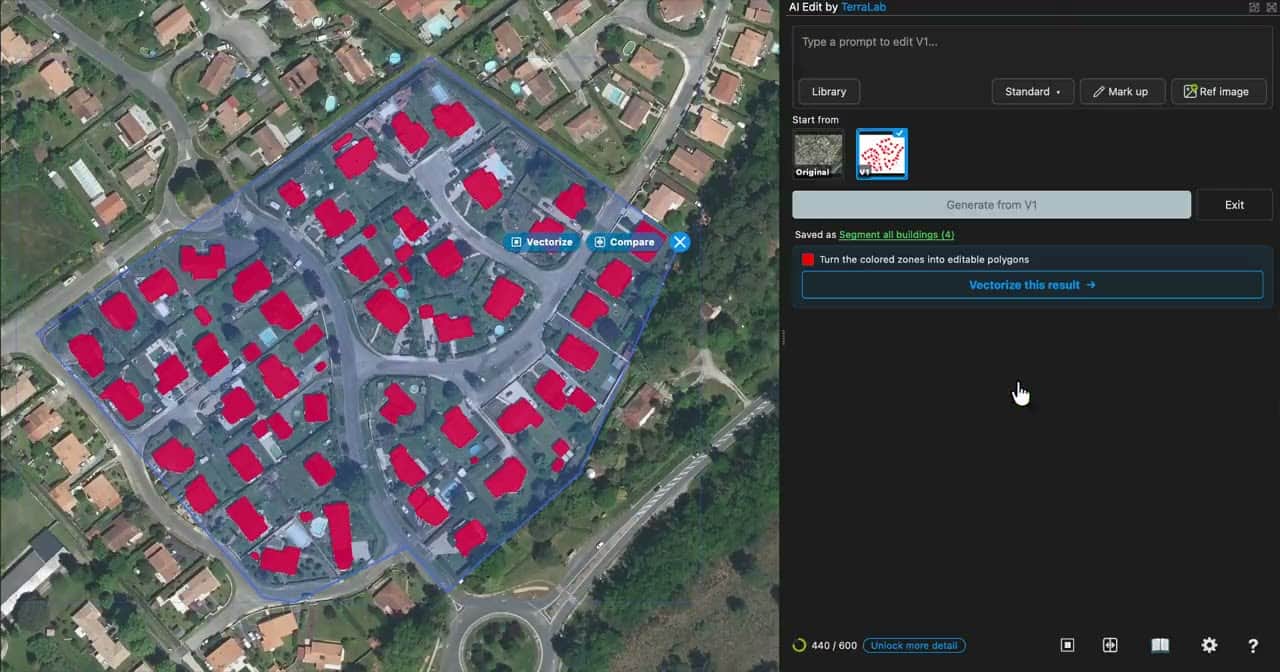
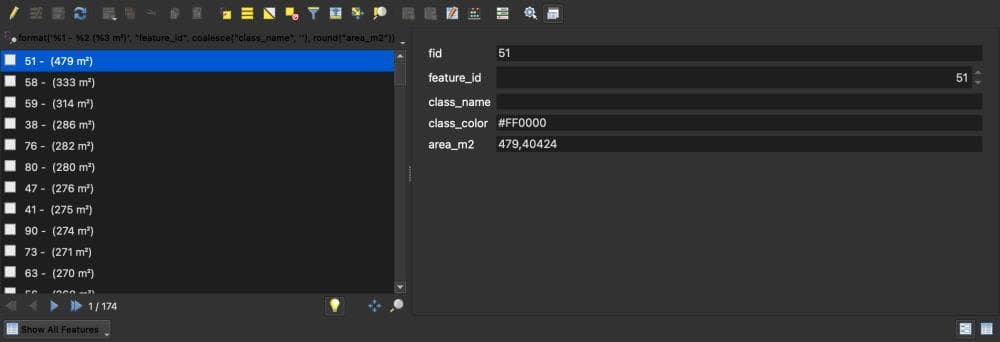
Each feature carries a clean attribute set (feature_id, class_name, class_color, and a geodesic area_m2) and is saved to a GeoPackage in your output folder, ready for analysis.
Reference images and layers
References give the AI extra context that is cropped to your zone but never shown on the canvas. Use them to control style, match a color legend, or feed real data. The free tier allows one reference. Pro allows several.
A reference image
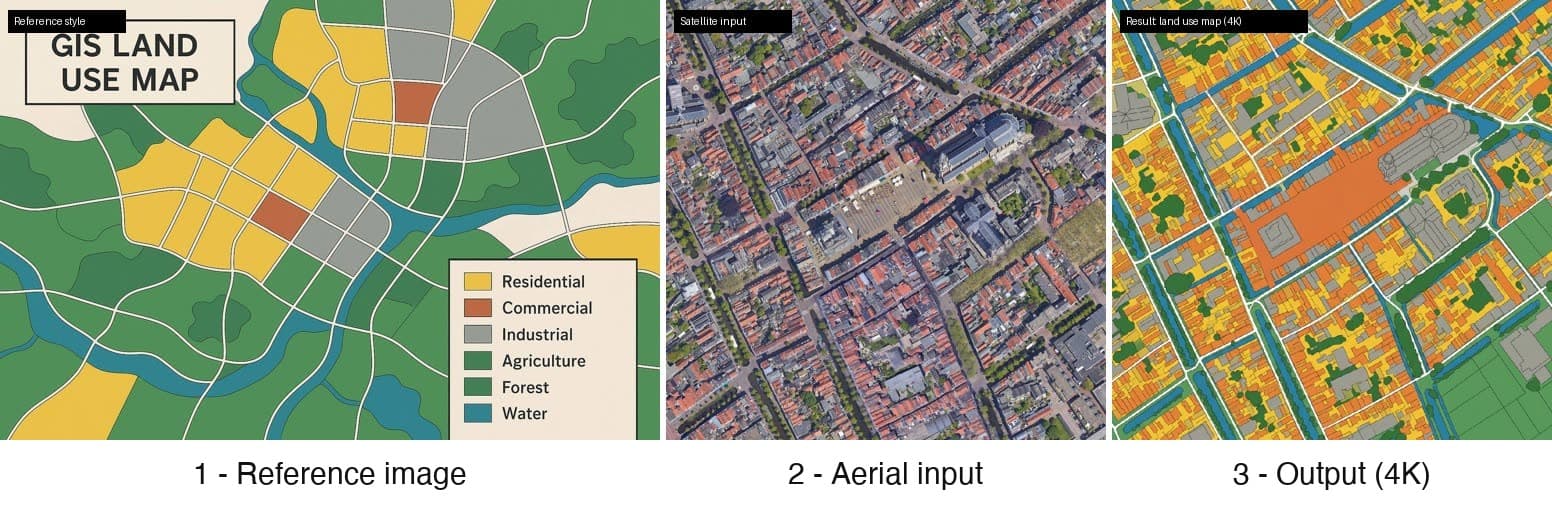
Attach an image from disk: a style sample, a target look, or a color legend. A reference constrains the model far more than a prompt alone, so you reach the result you have in mind faster. Click Ref image, pick the file, and it rides along with your prompt.
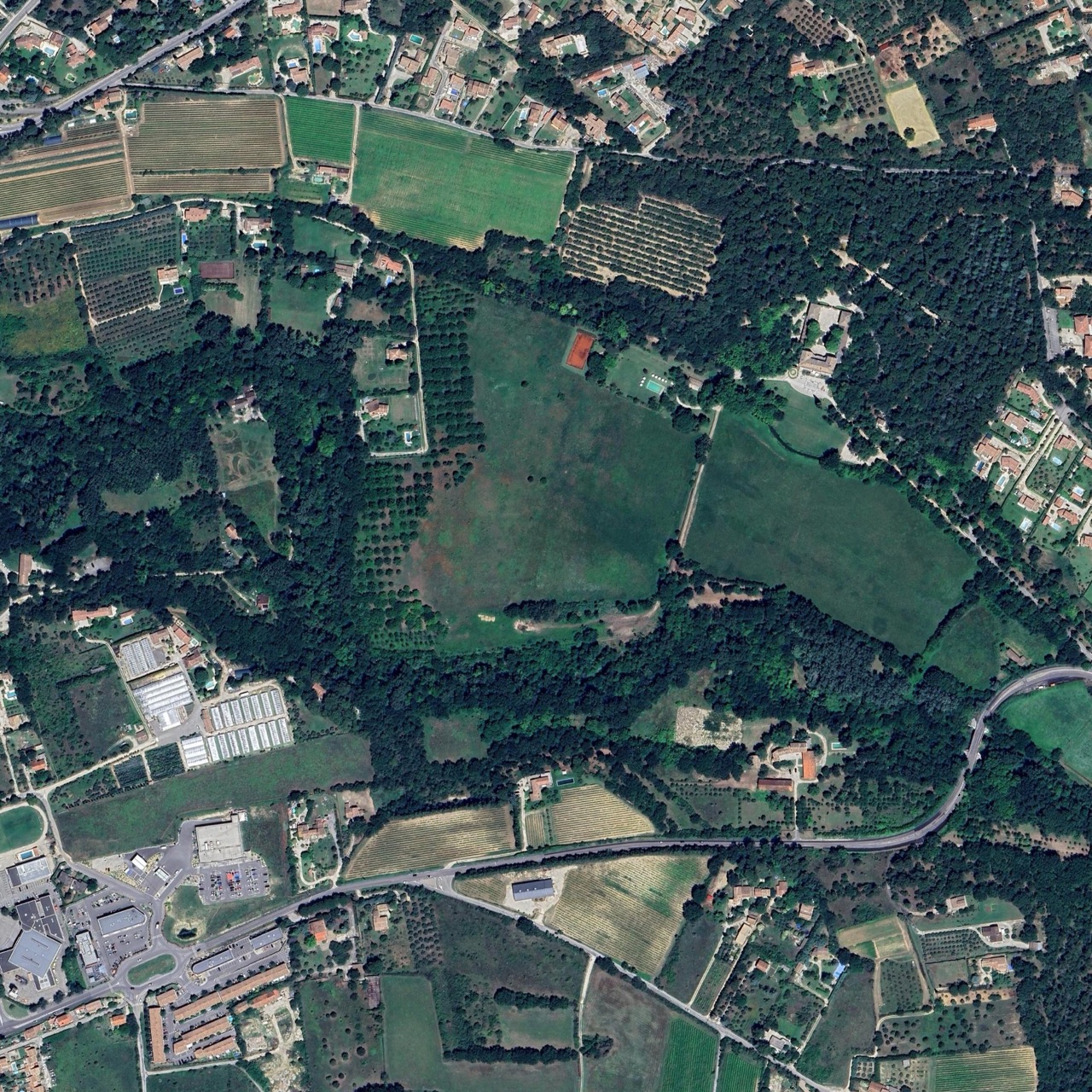
Another common use is a land-use map with your exact legend, paired with a prompt like:
Transform into a land use map in the style of the reference.
The output then matches your palette every time.
A QGIS layer as reference
The AI works from two things: the image visible on your canvas (the input it edits) and the references you hand it on the side. Any QGIS layer can be a reference: drag it onto the prompt box (or use Ref image). It is cropped to your exact zone and sent separately, never drawn into the input.
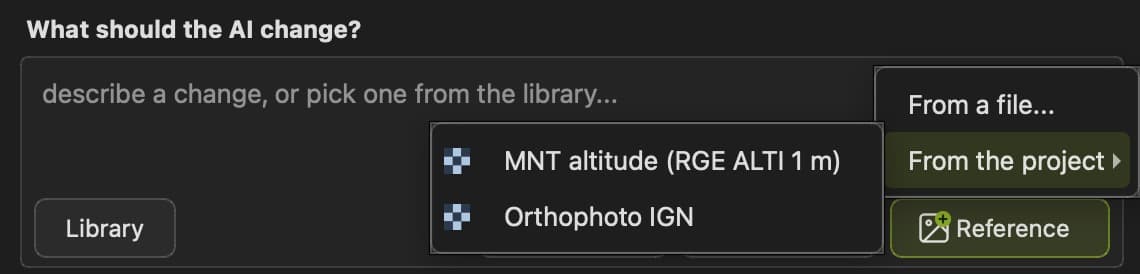
To attach a layer from your project, click Reference, then From the project, and pick the layer.
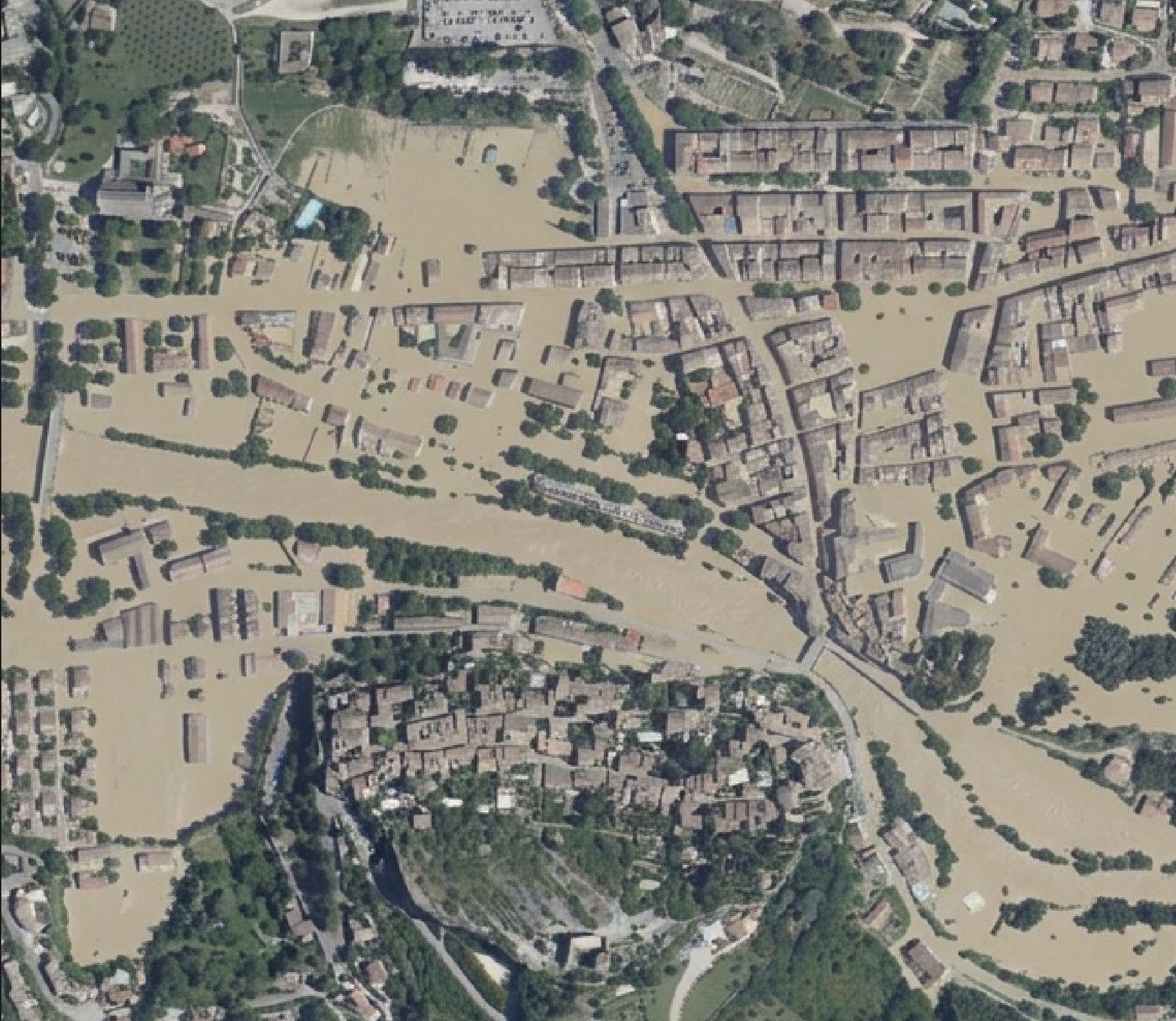
Here, the input is the aerial imagery of Vaison-la-Romaine (France). The reference is a digital terrain model (DTM) of the same area, hidden in the project: black and purple are the low points (the bed of the Ouvèze river), orange and light yellow the high ones.
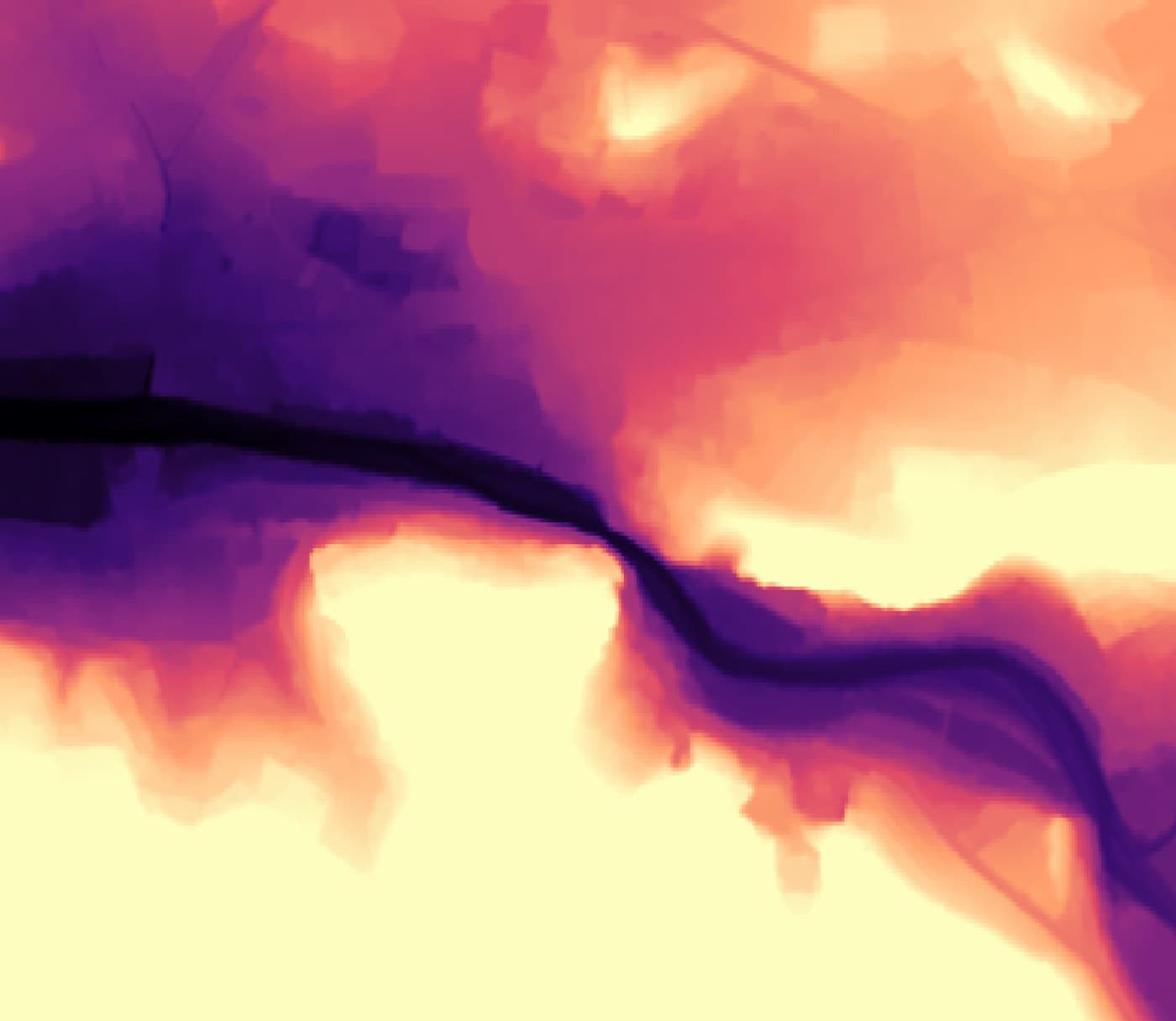
The prompt, leaning on that reference:
The reference is the terrain of the same area: black and purple = low, orange and yellow = high. Simulate a major flood: muddy water rises from the riverbed and floods only the black and purple zones, stopping dead where the terrain turns orange or yellow. Do not remove buildings, roads or trees: where the water rises, they are only partly submerged.
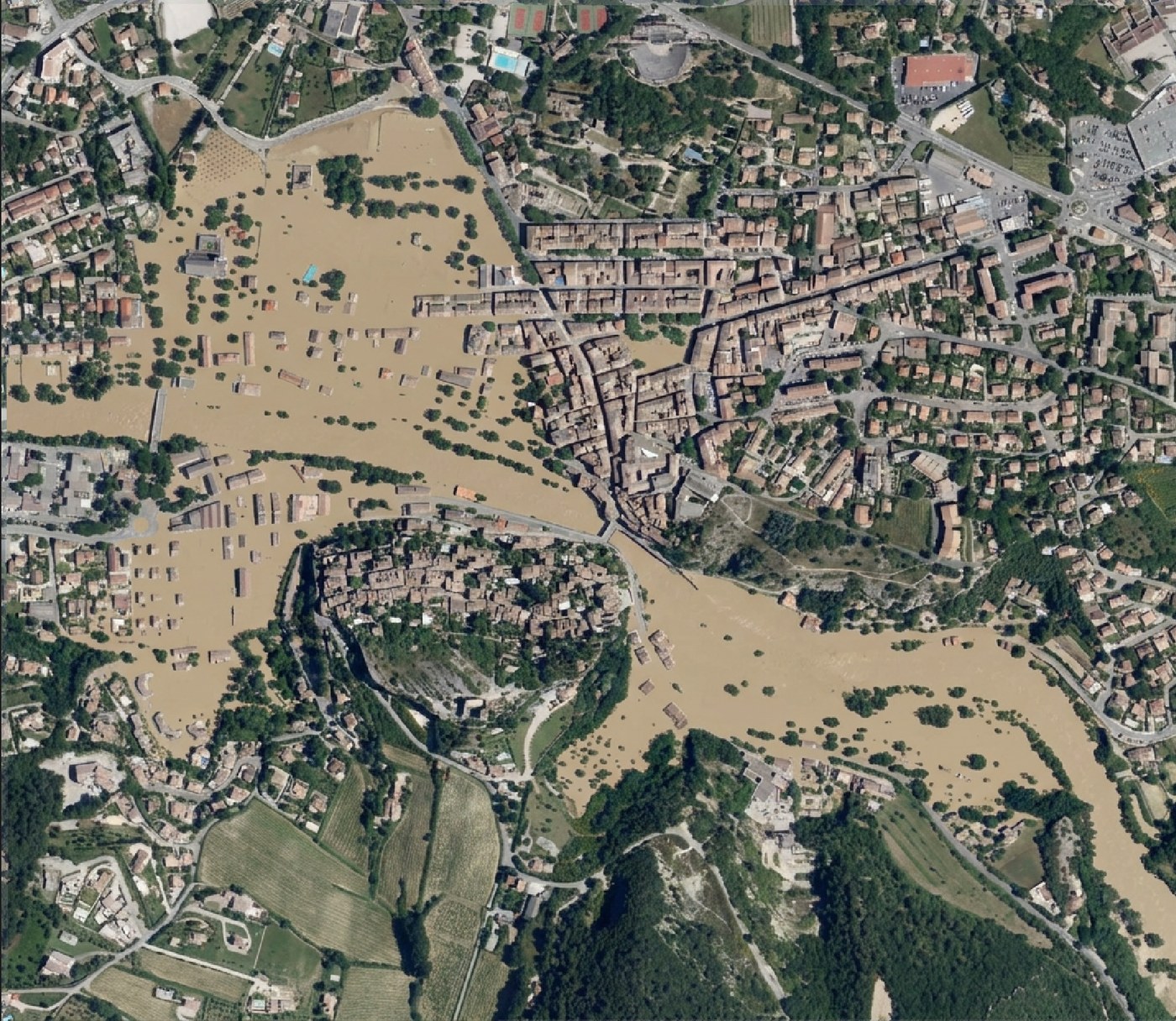
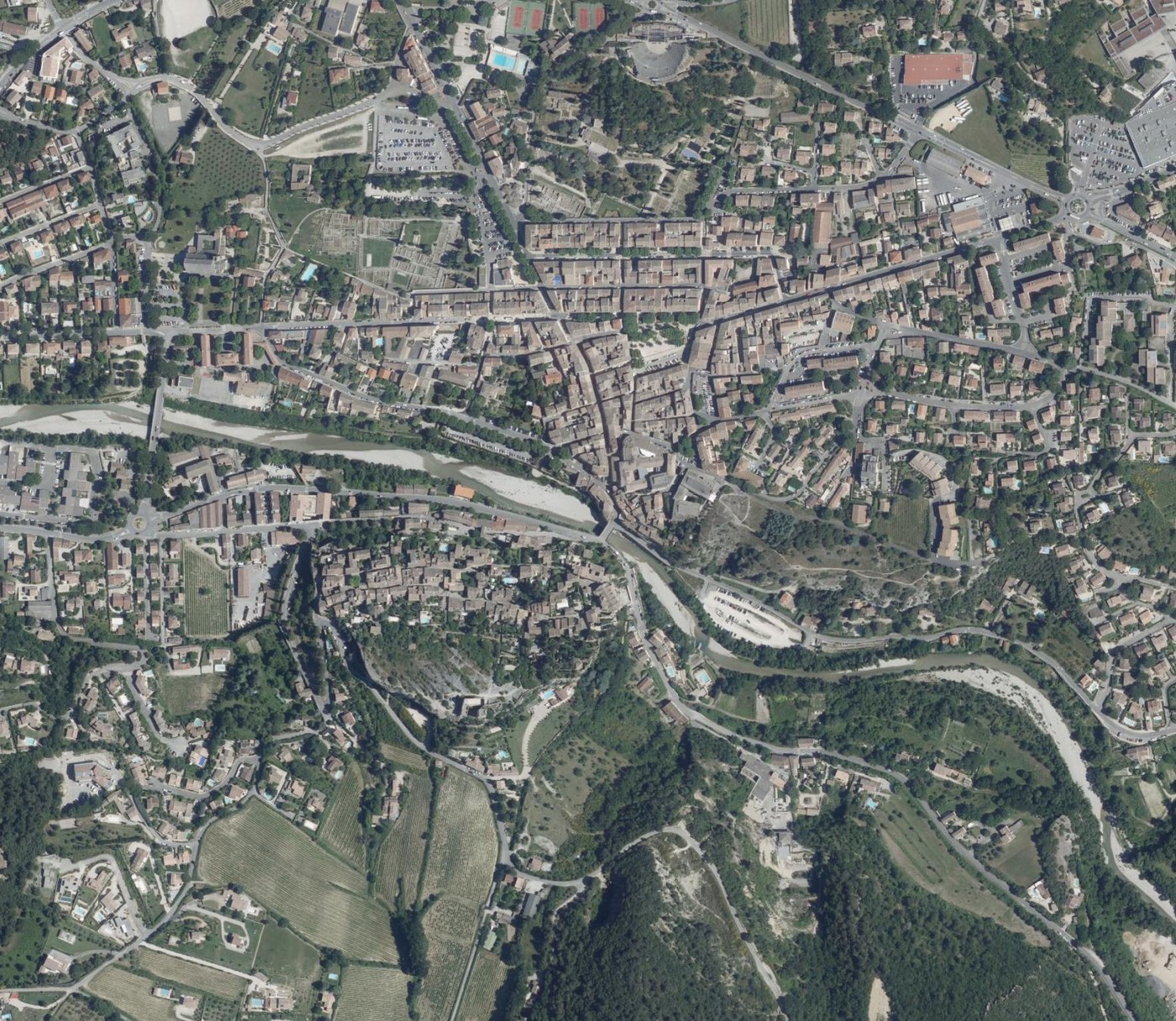
To see how closely the water hugs the reference, compare the DTM with the result:
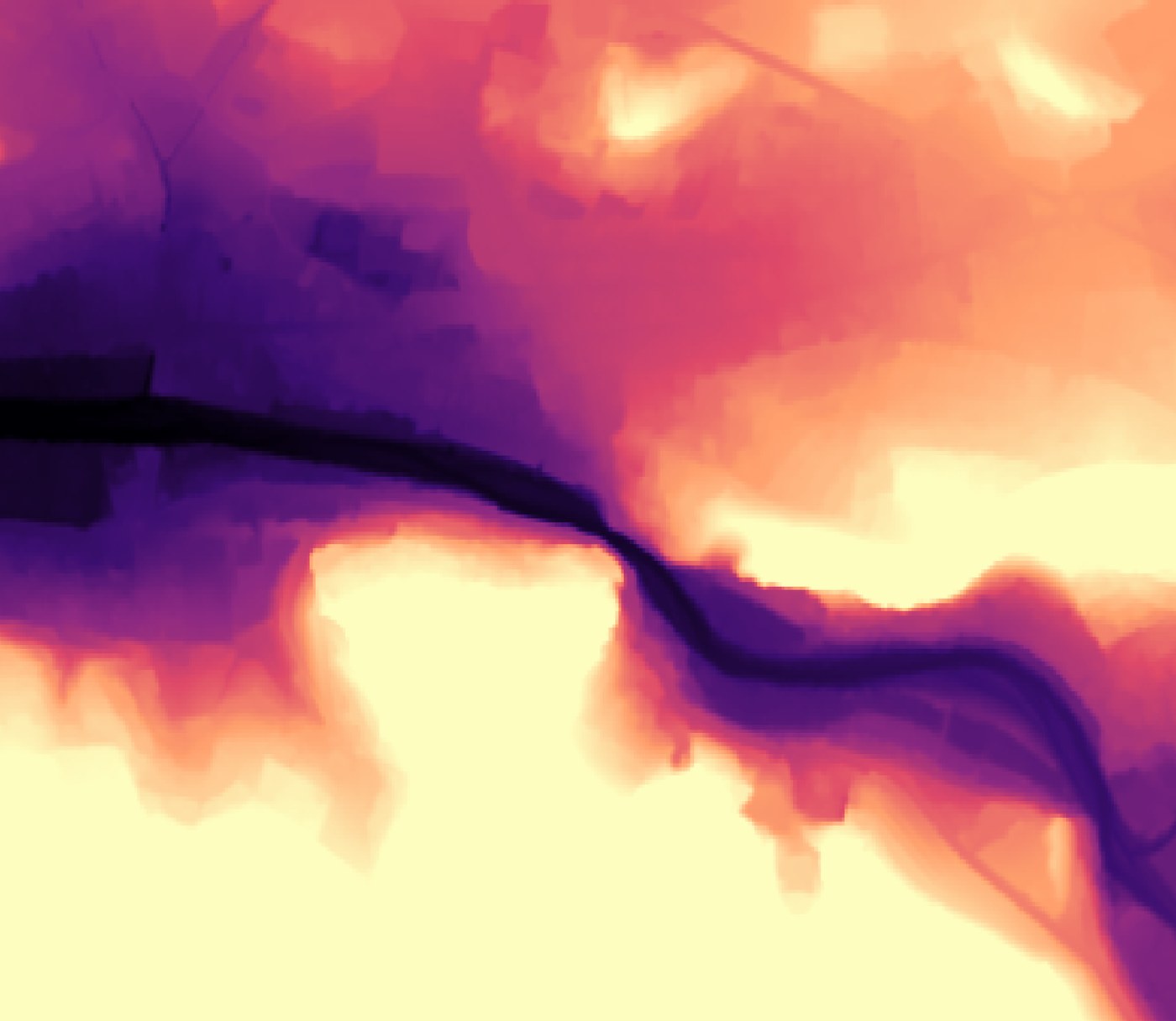
The same prompt, without the DTM as a reference: the AI no longer knows the terrain, and the water drowns almost everything, slopes included. That is the whole value of a reference layer: it constrains the model with real data.
Every reference is co-located, cropped to the same zone and aligned to the same ground as your input. So you can stack several and the model reads them as one synchronized scene: a DEM or 3D terrain for elevation, several aerial or satellite captures of the same place, contour, water, or land-use layers. Each extra layer is one more aligned source of context, and the more the model has to work with, the better aligned its result.
Free vs Pro
The full prompt library, Mark up, Vectorize, and references all work on the free tier. Pro raises the limits: higher resolution, several reference images per edit, and a larger monthly allowance.
Resolution is the one that changes the output itself. A higher setting raises the pixel count on both sides, the input image the model reads and the result it returns, so it resolves detail that is not there at 1K and comes back sharper and better aligned.
~1024 px · ~1 MP
Draft and explore
Free~2048 px · ~4 MP
Sharper, cleaner edges
Pro~4096 px · ~16 MP
Finest detail, best aligned
ProEach square stands for a block of pixels. A higher tier packs in more of them on both sides: a larger input image the model reads, and a larger result it generates, so finer detail survives.
What to remember
The zone you draw is sent as a flat picture of your visible canvas, so the basemap and the zoom you set before drawing decide what the AI works from.
A reference layer must stay hidden in the Layers panel, because a visible layer becomes part of that picture instead of riding alongside it.
Resolution raises the pixel count on both sides, the input the model reads and the result it returns, so detail that is missing at 1K survives at 4K.
Vectorize needs flat colors, so ask the prompt for solid fills and clean edges whenever you plan to turn a result into polygons.
Small zones come back sharper than large ones.
The ? menu in the panel holds the tutorial and the terms, and reaches us if something goes wrong.