How to Make a Map in QGIS: Step by Step, Then With AI
Published
To make a map in QGIS, load a layer, color it from the Layer Styling panel, then open Project > New Print Layout… and add a map, a title, a legend, a scale bar and a north arrow before you export to PDF or PNG. This guide does it once on real open data for Paris, with every setting we used, then gives the same job to AI Agent in one sentence and shows what it got right and wrong.
| Step | Where in QGIS | What we did |
|---|---|---|
| 1. Load data | Layer > Add Layer > Add WFS / OGC API - Features Layer… | Paris arrondissements from the IGN |
| 2. Compute a value | Field Calculator | Population per km² |
| 3. Style | Layer Styling panel (F7), Graduated | 5 classes, natural breaks |
| 4. Label | Layer Styling panel, Labels tab | 1er, 2e … 20e |
| 5. Lay out | Project > New Print Layout… | Map, title, legend, scale bar, north arrow, source |
| 6. Export | Layout > Export as PDF… | 0.04 s, 184 KB |
The test data
Every number below comes from one run on 19 October 2026, in QGIS 3.44.8 on a Mac.
The map uses the 20 arrondissements of Paris from ADMIN EXPRESS, the free boundary dataset of the IGN, France's mapping agency. Each one carries its population: the 2023 census figure in force since January 2026. The 20 add up to 2,103,778 people, the same number INSEE, the French statistics office, publishes for Paris.
You can follow along with any boundaries that have a number in them: US counties with a census table, districts from OpenStreetMap, your own sales areas. If you are new to QGIS itself, start with what QGIS is and how to install it.
Step 1: Load the data
The IGN serves ADMIN EXPRESS as a WFS, a web service QGIS reads like a file.
Set the project CRS first
Open Project > Properties… > CRS and pick a projected system in metres. For France that is Lambert-93 (EPSG:2154). For the US, use the State Plane or UTM zone of your area. This one choice keeps the scale bar and the areas right later.
Add the WFS layer
Layer > Add Layer > Add WFS / OGC API - Features Layer…, click New, paste https://data.geopf.fr/wfs as the URL and connect. Pick ADMINEXPRESS-COG.LATEST:arrondissement_municipal and click Add. It holds the 45 arrondissements of Paris, Lyon and Marseille. The download was 1.98 MB and took under a second.
Keep only Paris
Right-click the layer, Filter…, and type "code_insee" LIKE '751%'. Twenty features stay.
Save a local copy
Right-click, Export > Save Features As…, format GeoPackage. Our file weighs 196 KB. A local copy opens without the network and you can edit it.
Step 2: Compute the value you want to map
A map of raw population would mislead. The 12th and 16th arrondissements look big and full, but each covers about 16 km² because they include the Bois de Vincennes and the Bois de Boulogne. Divide by area and you get a fair comparison.
Open the Field Calculator (the abacus icon, or Ctrl+I in the attribute table). Tick Create a new field, name it density, set the type to Decimal number (real) and use this expression:
"population" / ($area / 1000000)
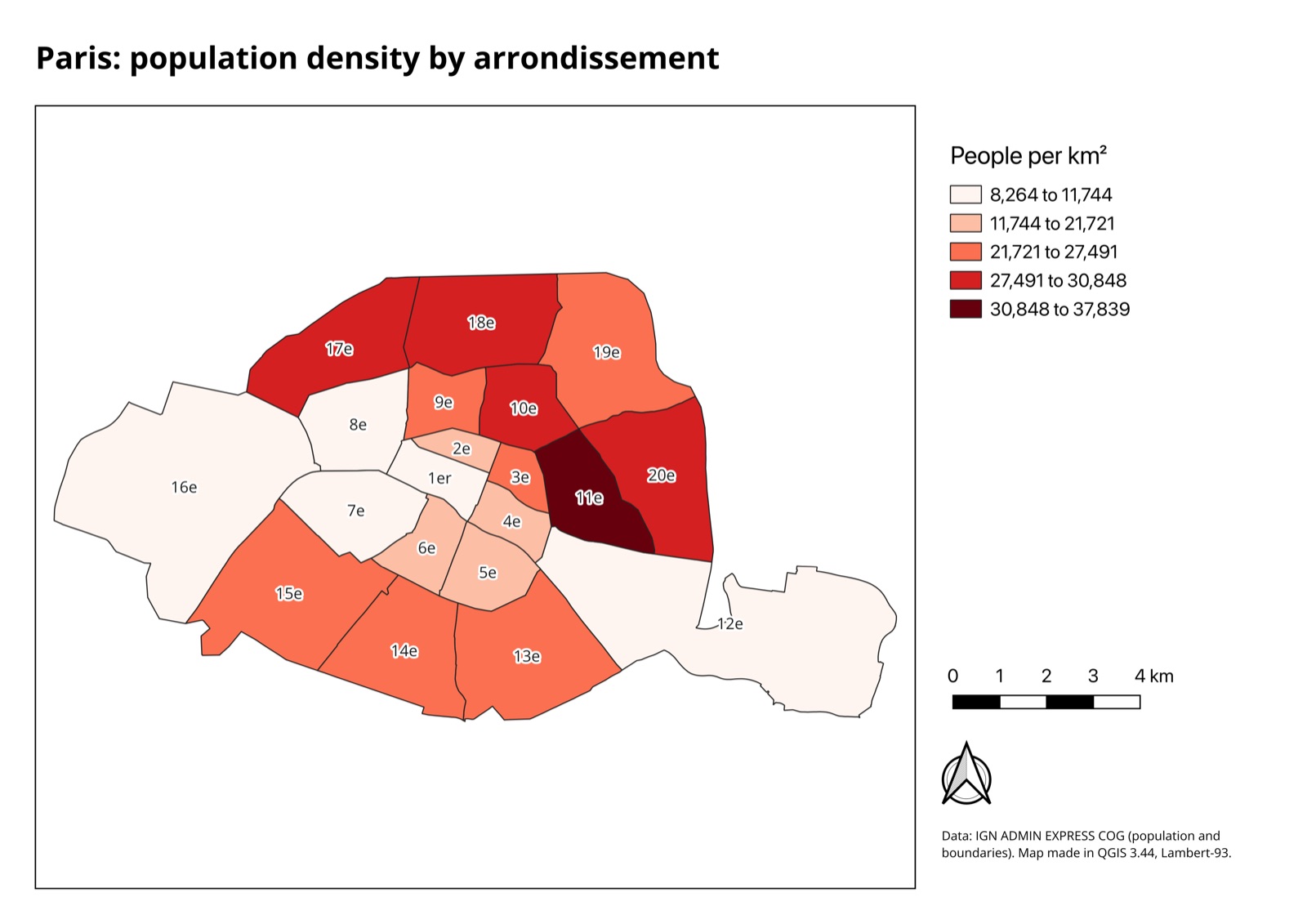
$area returns square metres, so dividing by a million gives km². The results ran from 8,264 people per km² in the 1st arrondissement to 37,839 in the 11th, where 138,170 people live on 3.65 km².
Step 3: Style the layer
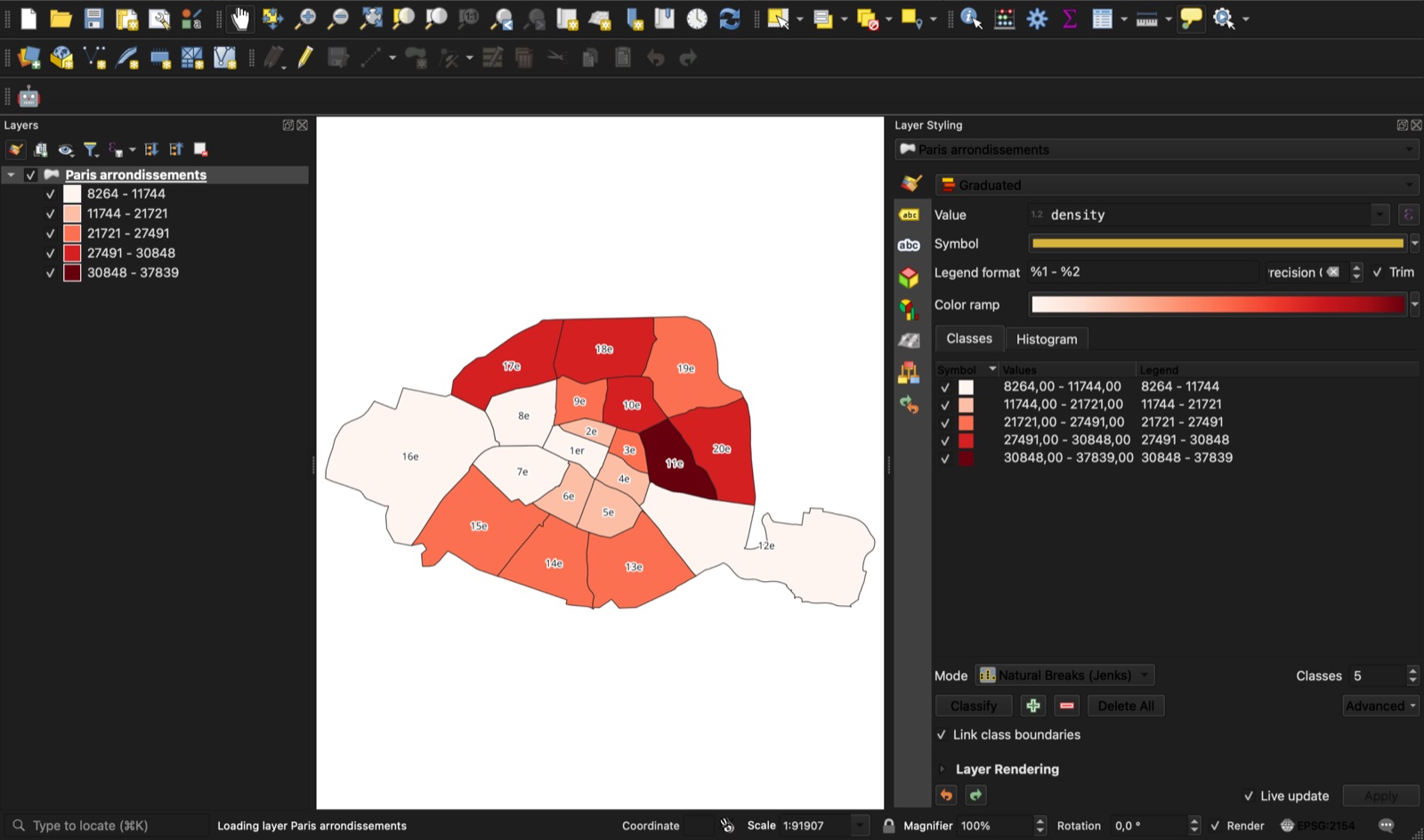
Press F7 to open the Layer Styling panel and switch the renderer from Single Symbol to Graduated.
Pick the field
Set Value to density.
Pick a color ramp
Open Color ramp and choose a one-color ramp such as Reds. Light means low, dark means high, and nobody needs the legend to read the order.
Classify
Set Mode to Natural Breaks (Jenks), Classes to 5, and click Classify. Jenks puts the class limits where the values jump, which suits 20 uneven areas better than equal steps.
Clean the legend text
Our legend first showed four decimals, like 8264.0000. Set Precision to 0 next to Legend format. You can also double-click a label in the list and type your own, such as "8,264 to 11,744".
For categories instead of numbers, like land use or party, use Categorized in the same menu.
Step 4: Add labels
In the same panel, open the Labels tab (the "abc" icon) and choose Single Labels.
We wanted "1er, 2e … 20e" and not the long official name "Paris 11e Arrondissement". Click the ε button next to Value and use:
CASE WHEN to_int("numero_de_l_arrondissement_municipal") = 1
THEN '1er'
ELSE to_int("numero_de_l_arrondissement_municipal") || 'e' END
Under Buffer, tick Draw text buffer with a 1 mm white halo so the text stays readable on the dark reds. QGIS hides labels that would overlap, so short text matters on small areas.
Step 5: Build the print layout
The print layout is the page QGIS prints or exports. In QGIS 2 it was called the Print Composer. QGIS 3.0 replaced it in February 2018, so tutorials that still say "Composer" describe a window you will not find.
Create the layout
Project > New Print Layout… (Ctrl+P), give it a name. Right-click the blank page, Page Properties…, and set Size to A4 and Orientation to Landscape.
Add the map
Add Item > Add Map, then drag a rectangle over the left two-thirds of the page. The map shows what your main window shows. In Item Properties, type a round Scale or use the "Set map extent to match main canvas extent" button. Ours settled at 1:94,054.
Add a title
Add Item > Add Label, drag a box across the top, and type the title in Main Properties. Set the font in Appearance. We used Open Sans Bold 20 pt.
Add the legend
Add Item > Add Legend. In Legend Items, untick Auto update, then remove every layer you do not want with the minus button. Rename the title to the unit, here "People per km²". Right-click the layer name in the legend tree and pick Hidden to show only the classes.
Add a scale bar
Add Item > Add Scale Bar. Set Scalebar units to Kilometers, Fixed width to 1 unit per segment and 4 segments to the right. If it shows degrees, go back to Step 1: your project CRS is not in metres.
Add a north arrow
Add Item > Add North Arrow. QGIS links it to the map, so it turns if you rotate the map.
Credit the data
Add one more label at the bottom with the source and the year. Ours reads "Data: IGN ADMIN EXPRESS COG (population and boundaries)". Most open data licences ask for it.
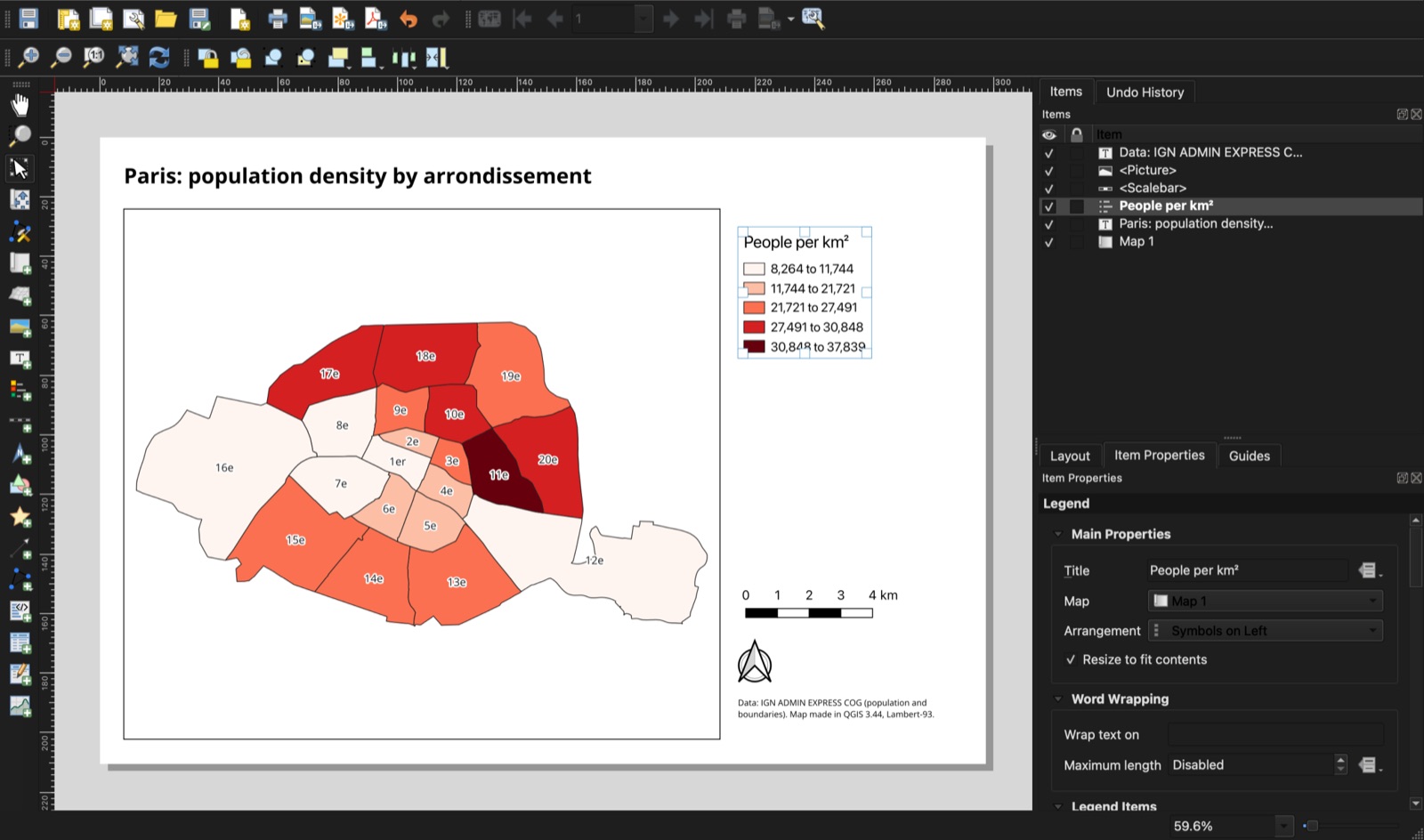
Use View > Smart Guides and the alignment buttons in the toolbar to line items up. Put the legend, the scale bar and the north arrow on one left edge and the page looks designed.
Step 6: Export to PDF or PNG
In the layout window, Layout > Export as PDF… or Layout > Export as Image….
| Format | Setting | Time | Size |
|---|---|---|---|
| 300 dpi, vector | 0.04 s | 184 KB | |
| PNG | 300 dpi | 0.19 s | 474 KB, 3507 x 2480 px |
The PDF stays sharp at any zoom and is the right file to print or attach to a report. The PNG suits a slide or a web page. Add a large raster basemap and both files grow a lot, and the export takes longer.
Save the project too (Project > Save, a .qgz file). The layout lives inside it, so next year you only reload new data and export again.
Common problems
The scale bar shows degrees or strange numbers. The project CRS is geographic, such as WGS 84 (EPSG:4326), where one unit is a degree. Set a projected CRS in metres under Project > Properties… > CRS. Our guide on what a CRS is explains the difference.
The legend lists every layer. New legends follow the Layers panel. Untick Auto update in Legend Items and remove the extra layers, or tick Only show items inside linked map.
The legend shows long decimals. Set Precision in the Layer Styling panel, as in Step 3, or edit the labels by hand.
The basemap is blank in the layout or the export. An online basemap needs the network at export time, and some services only answer in one format. For the French IGN orthophoto, the WMS address https://data.geopf.fr/wms-r/wms with the layer ORTHOIMAGERY.ORTHOPHOTOS worked in our tests. See how to add a basemap in QGIS for the usual sources.
Labels disappear. QGIS drops labels that collide. Shorten them, lower the font size, or allow overlapping labels in the label settings.
The same map with AI Agent
AI Agent is our QGIS plugin: you type a task in a panel and it runs the QGIS tools in your open project. We started from the raw layer again: no density field, one flat yellow color. Then we typed this:
Make a print-ready map of population density by arrondissement from paris_arrondissements: people per km², graduated colours in 5 classes, arrondissement labels, then an A4 landscape layout with a title, a legend, a scale bar in km, a north arrow and the data source (IGN ADMIN EXPRESS), and export it to PDF and PNG next to the GeoPackage.
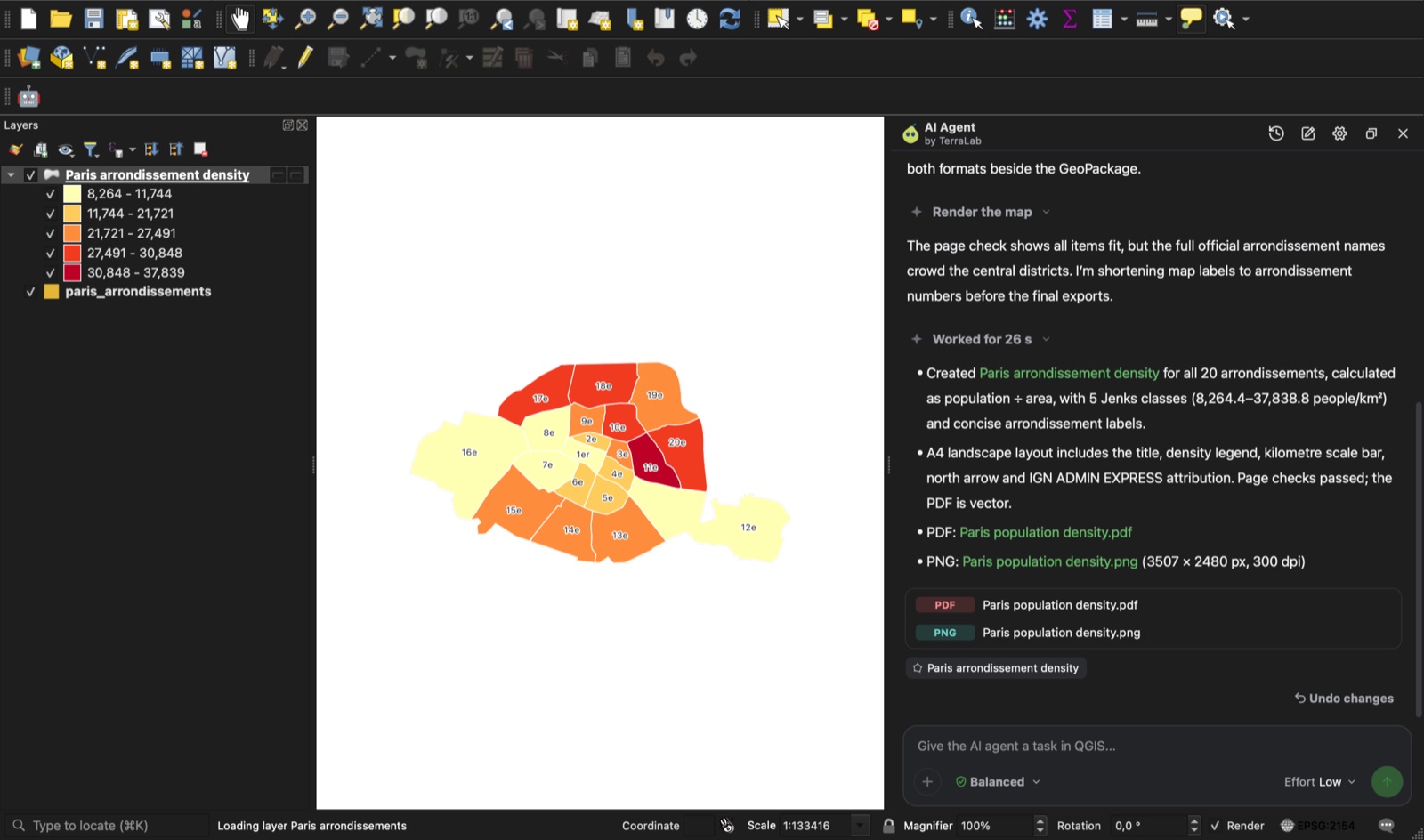
It ran 19 QGIS tools without an error. The panel's three work timers add up to 80 seconds, and the whole run took under two minutes by our clock. It ended with a 249 KB PDF and a 3507 x 2480 px PNG in the project folder.
What it got right:
- The same five Jenks classes as our manual map, from 8,264 to 37,839 people per km².
- Every item we asked for, plus a subtitle that explains the calculation.
- It rendered the page, saw that the full official names crowded the center, and switched the labels to numbers before exporting. That is the check we did by eye in Step 4.
What we would fix:
- The legend repeats the layer name under its title.
- The scale bar stops at 2 km, and it floats with the north arrow in an empty right column. The bottom fifth of the page is blank.
- The new density layer sits in a temporary processing folder, not next to the data. Save it with
Export > Save Features As…if you want to keep it.
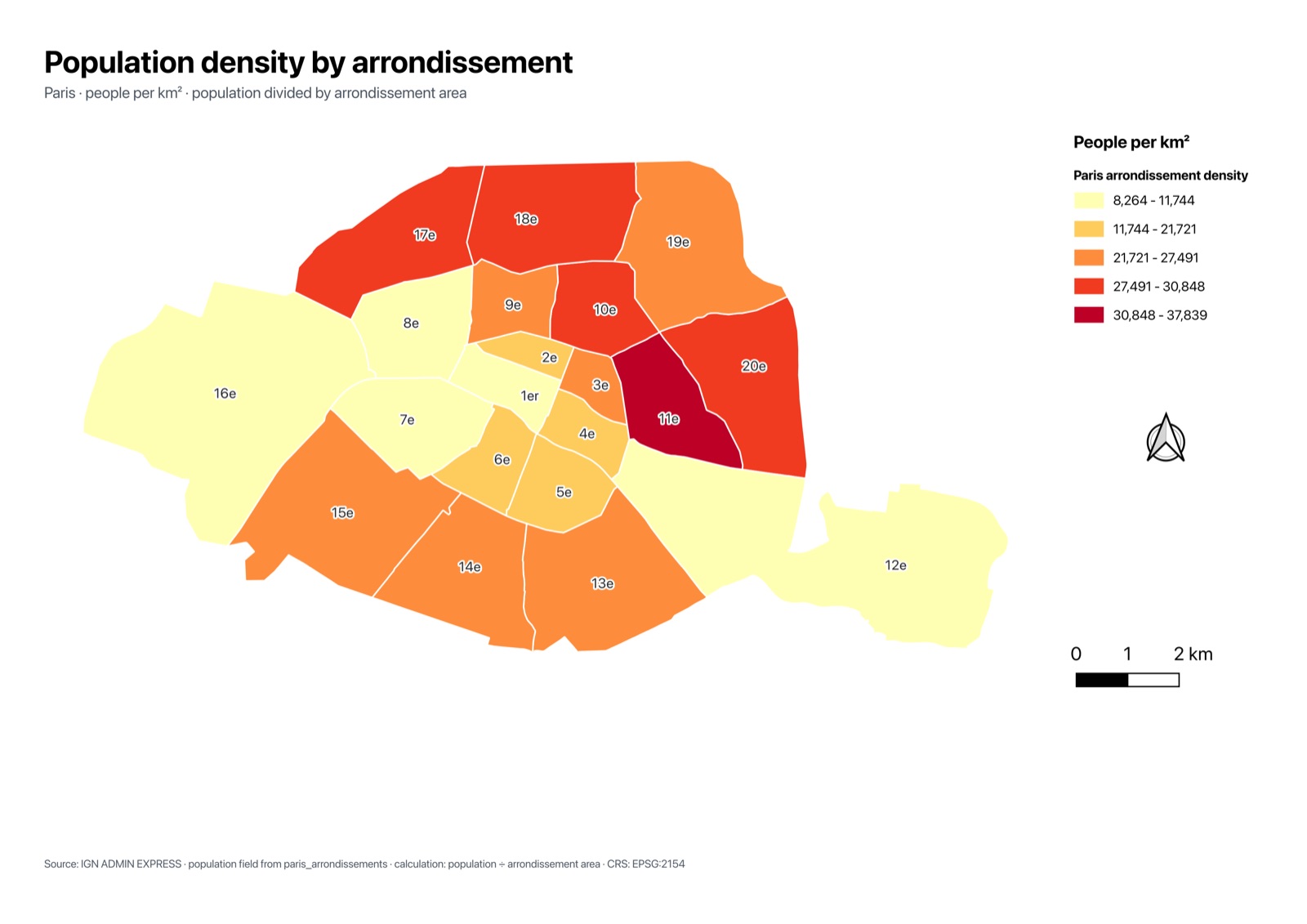
The layout it builds is a normal QGIS layout, so you open it from Project > Layout Manager… and fix the last details by hand. That split works well: the agent does the clicking, you do the design.
Many maps at once: the atlas
The atlas makes one page per feature from a single layout: one map per arrondissement, county or parcel. In the layout window, open the Atlas panel, tick Generate an atlas and pick a Coverage layer. Then, in the map's Item Properties, tick Controlled by atlas. The Atlas menu has its own export, to one PDF or one file per page.
What to remember
Set a projected CRS before anything else.
Map a rate, like people per km², not a raw count, when your areas differ in size.
Style with Graduated and natural breaks, then label with short text.
In the print layout, add the map, title, legend, scale bar, north arrow and source, and clean the legend before you export.
If you would rather describe the map than click it, give the task to AI Agent and check the layout it builds.
Questions people ask
How do I make a map in QGIS?
Load a layer, style it in the Layer Styling panel (F7), then open Project > New Print Layout…. Add a map, a title, a legend, a scale bar and a north arrow from the Add Item menu, and export with Layout > Export as PDF… or Export as Image….
What happened to the Print Composer in QGIS?
QGIS 3.0, released in February 2018, replaced the Print Composer with the print layout. It does the same job with more options. Open it from Project > New Print Layout… or manage existing ones in Project > Layout Manager….
How do I export a map from QGIS as a PDF or an image?
In the print layout window, use Layout > Export as PDF… for print and reports, or Layout > Export as Image… for PNG or JPG. At 300 dpi, our A4 map exported in under a second: a 184 KB PDF and a 474 KB PNG.
Why does my QGIS scale bar show degrees?
Your project uses a geographic CRS such as WGS 84, whose unit is the degree. Set a projected CRS in metres in Project > Properties… > CRS, for example Lambert-93 in France or the UTM zone of your area, and set the scale bar units to kilometers.
Can AI make a map in QGIS?
Yes. AI Agent runs the QGIS tools from a typed request. From one sentence it built our Paris density map with the same classes as the manual version, a full A4 layout and PDF and PNG exports, in under two minutes. The layout still needed some tidying by hand.